
What this area is for
Some Daily Care records need a Nurse to look at them. This happens when:
- a concern was recorded
- the entry was late
- someone asked for a correction
- follow-up is still open
This is Nurse review. It is not the same as approving a formal correction. Formal correction approval stays with Clinical governance.
Before you start
- You must be signed into Care Portal as a Nurse, with your own PIN.
- You cannot review a record that you wrote yourself. Another nurse must do that.
- If a resident is unwell now, go to the resident first. The screen can wait.
Step-by-step: open Needs review
- Open Care Portal on the workplace device.
- Select Confirm workplace location.
- Select your name and enter your Care Portal PIN.
- Open Needs review.
- You will see only records that still need a nurse look. Ordinary completed care is not in this list.
- Tap the record you want to review.
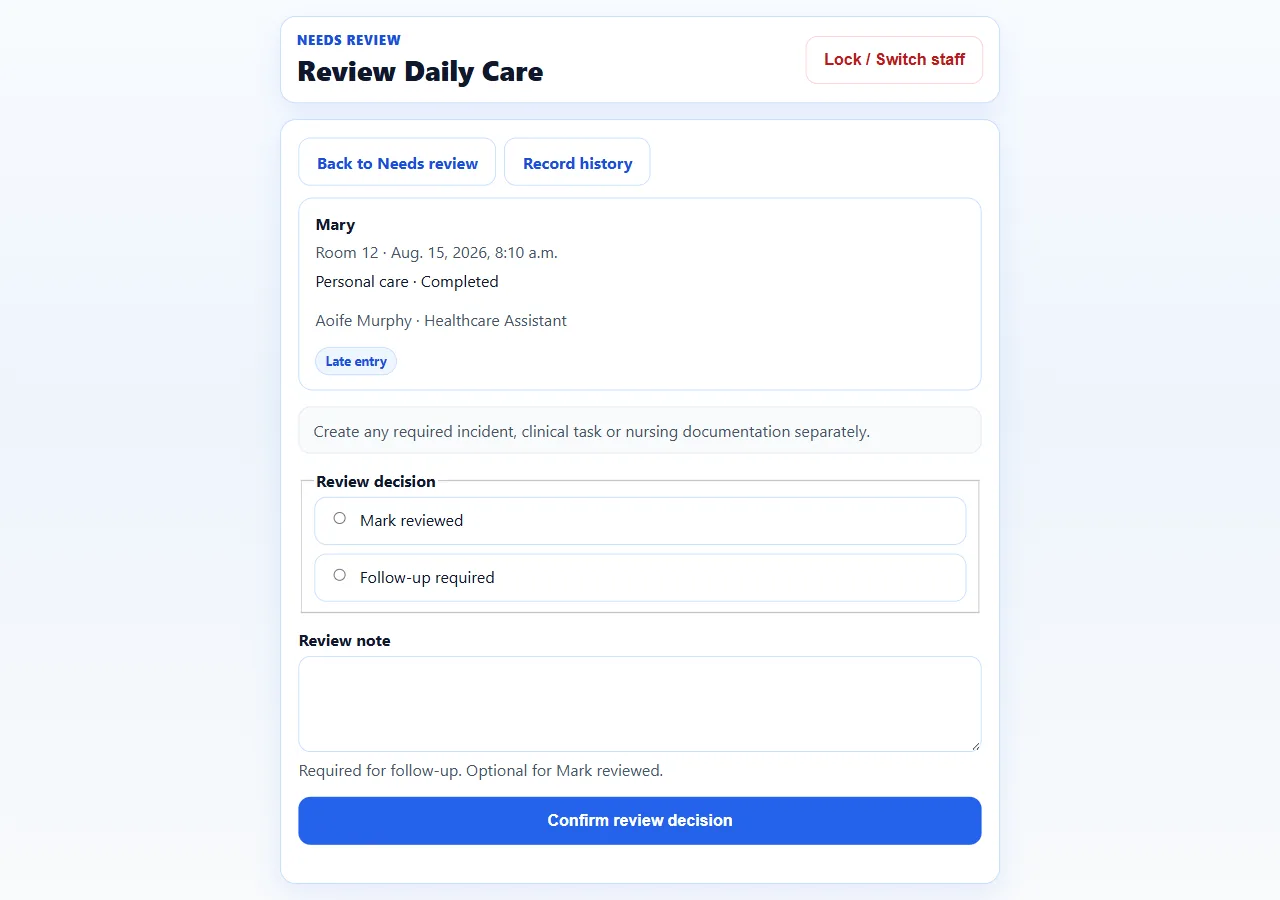
- Read the resident name, room, time, care activity and outcome slowly.
The page title is Review Daily Care.
Step-by-step: make a review decision
- Read any concern note or late-entry reason.
- If you need the full history, select Record history.
- Choose one action:
- Mark reviewed — you have read it and no extra follow-up is needed from this review.
- Follow-up required — something still needs to be done.
- If you choose Follow-up required, write a note. Say what must happen next, in simple words.
- A note is optional for Mark reviewed, but a short note is still helpful.
- Select Confirm review decision.
- Wait for the confirmation. Do not tap again.
The reminder on the screen is important: if the resident needs an incident, a task, or a nursing record, you create those separately. Nurse review does not create them for you.
What Nurse review does not do
Nurse review does not:
- change the original Daily Care record
- delete the record
- message anyone for you
- create an incident
- create a clinical task
- approve or refuse a formal correction
If the record shows Awaiting Clinical governance approval, leave the correction decision. That is not a Nurse Care Portal action.
If you wrote the record yourself
The screen will say that another nurse must complete the review. That is correct. Do not ask a Healthcare Assistant to “just press it”. Find another nurse, or tell the Clinical Manager.
When you are finished
Select Lock / Switch staff before you put the tablet down.
Questions people ask
A Healthcare Assistant recorded a concern. Did I get a message?
No. Care Portal does not message you. The person who recorded the concern should also have spoken to you. Check Needs review during the shift, and speak to the team.
I marked it reviewed, but the resident still needs an incident form.
Open Incidents / Risk in Clinical, or ask the Clinical Manager to do that from the office view. Nurse review and incident recording are separate on purpose.
Can I approve a correction from Care Portal?
No. You can see that a correction was requested. The decision is made by the people your home has authorised for Clinical governance.
The list is empty. Does that mean nothing happened today?
No. It only means nothing is waiting for Nurse review. Completed Daily Care still exists. Managers can see the wider picture in Today’s Care.