ÁitFoirne
Family Portal for Irish nursing homes

A private way for family to stay in touch

Family Portal is a private space for one nursing home and the relatives that home has authorised. Each person receives their own link and a six-digit PIN. It is not Clinical, and it is not the Employee Portal.
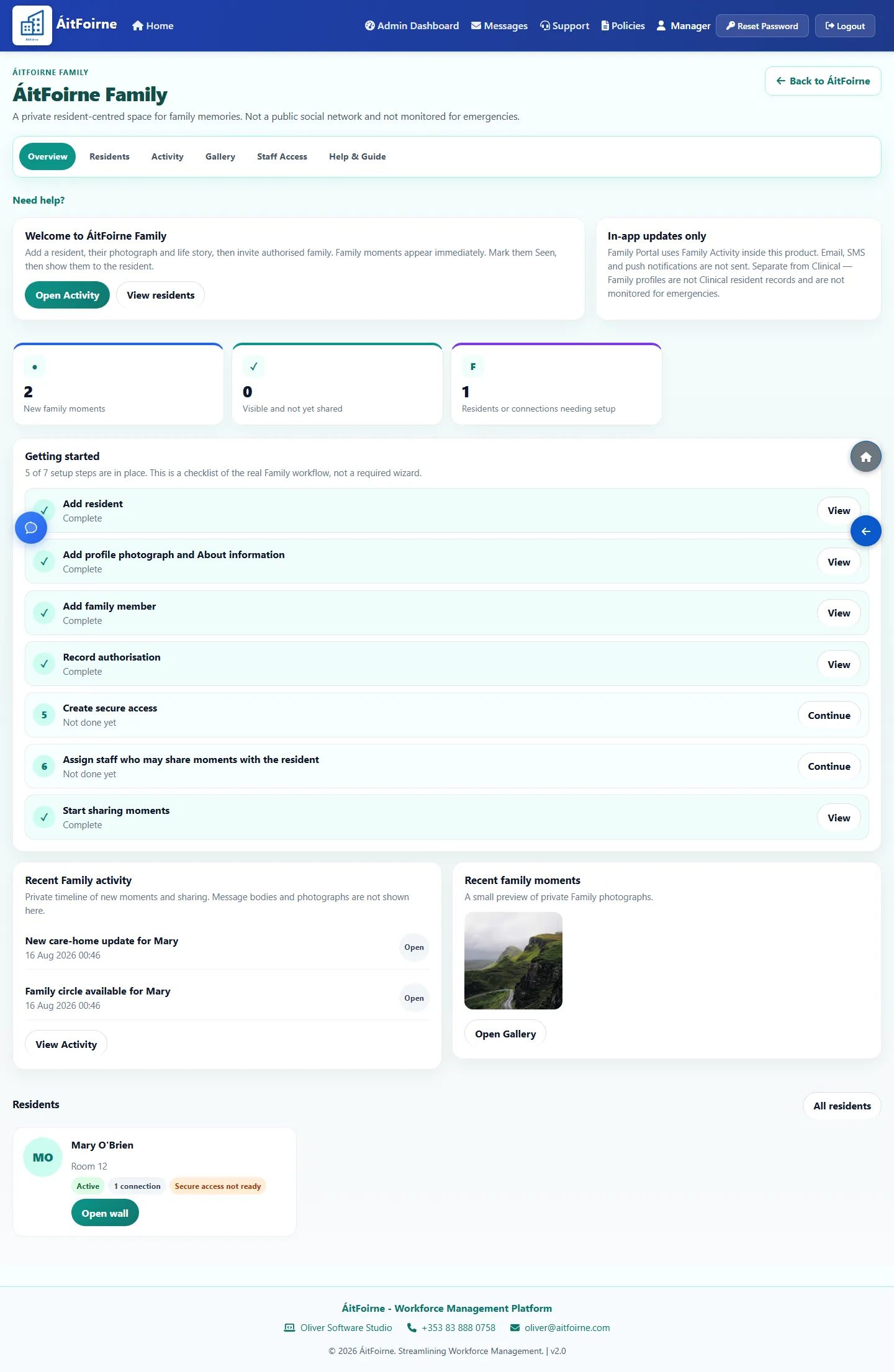
ÁitFoirne Family overview for fictional resident Mary O’Brien, with setup steps and a garden photograph
Screens shown with fictional demonstration data.

Who it is for

Three different doors

A job title does not open Family Portal. Each person uses the door that belongs to them.

Authorised family members

Open your own personal link, enter your PIN, then send a message or photos for that resident only.

Directors and administrators

Open Family Portal from ÁitFoirne, add the resident, authorise a relative, and issue the link and PIN.

Family Coordinator or Presenter

Assigned staff can show a family moment to the resident, and a Coordinator can post a care-home update for that person.

Product tour

See how Family Portal works

Real product screens from the ÁitFoirne demonstration home. Screens shown with fictional demonstration data.

1. The home sets up Family Portal

A manager opens Family Portal from ÁitFoirne, adds a Family resident, and names each relative. This is a Family profile, not the Clinical file.
  • ÁitFoirne Family overview for fictional resident Mary O’Brien, with setup steps, recent activity and a garden photograph
    Family overview The home sees new moments, residents that still need setup, and recent Family activity in one place.
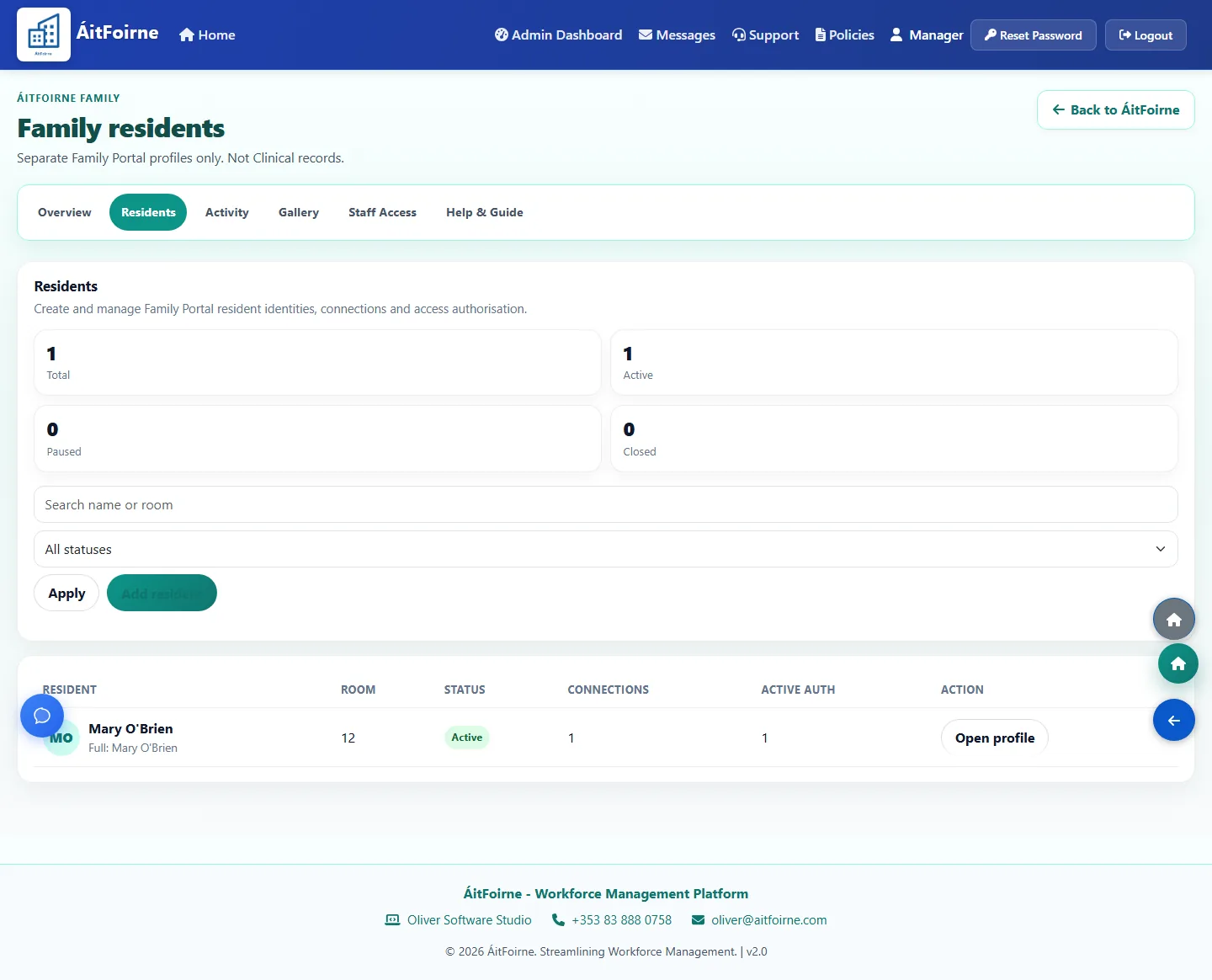
  • Family residents list showing fictional resident Mary O’Brien in Room 12, with one connection and active authorisation
    Family residents Each Family resident is a separate record. Room and name help the home identify the person. They are not Clinical notes.
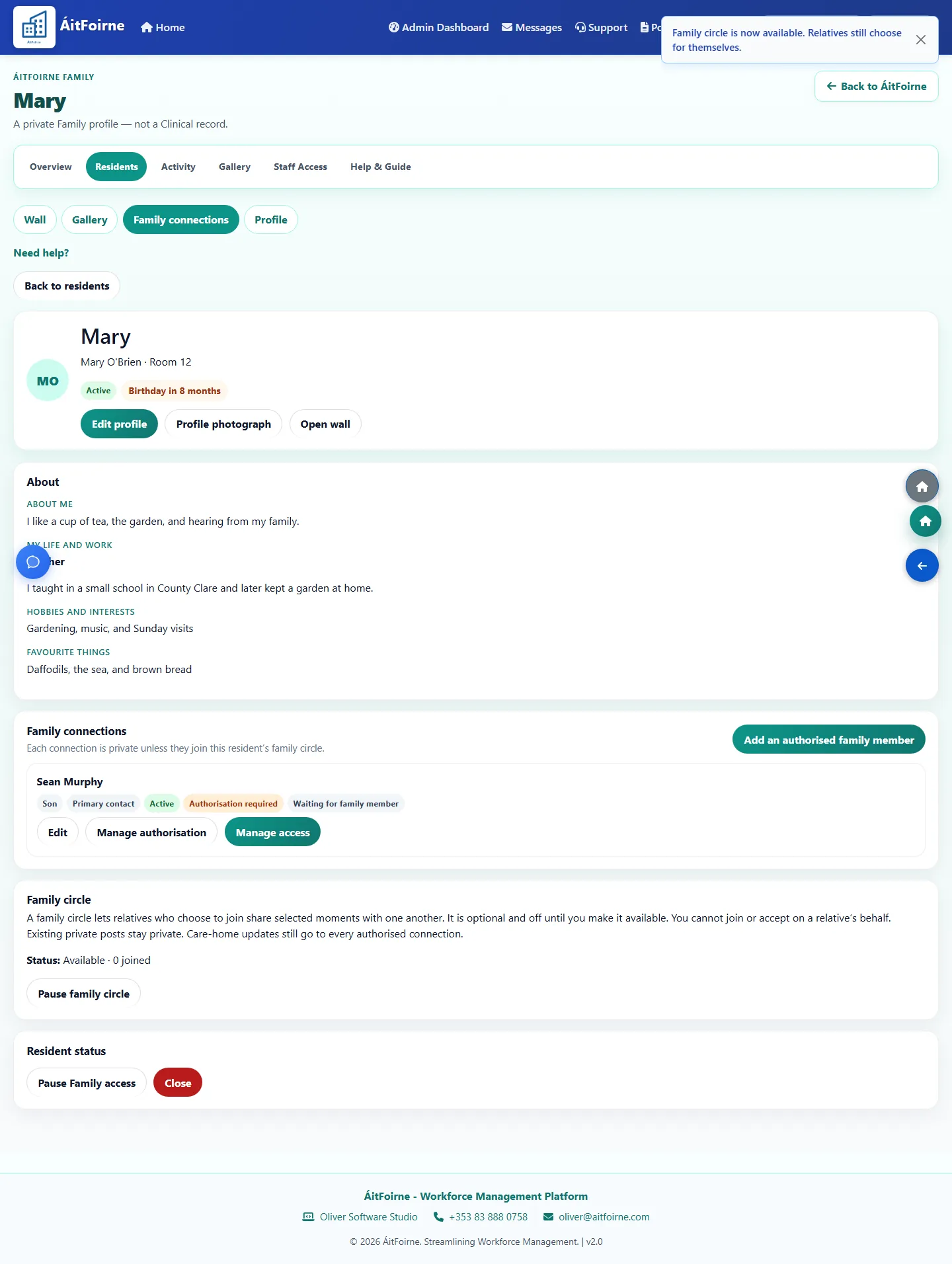
  • Family profile for Mary O’Brien with About me, life story, hobbies and favourite things, and Family circle controls
    Resident story About me, life and work, hobbies and favourite things stay with the Family profile. Do not write diagnoses here.

2. Authorise a relative and issue a PIN

A relationship label such as son is only a description. Access is a separate yes. The six-digit Family PIN is shown once, then the relative opens their own personal link.
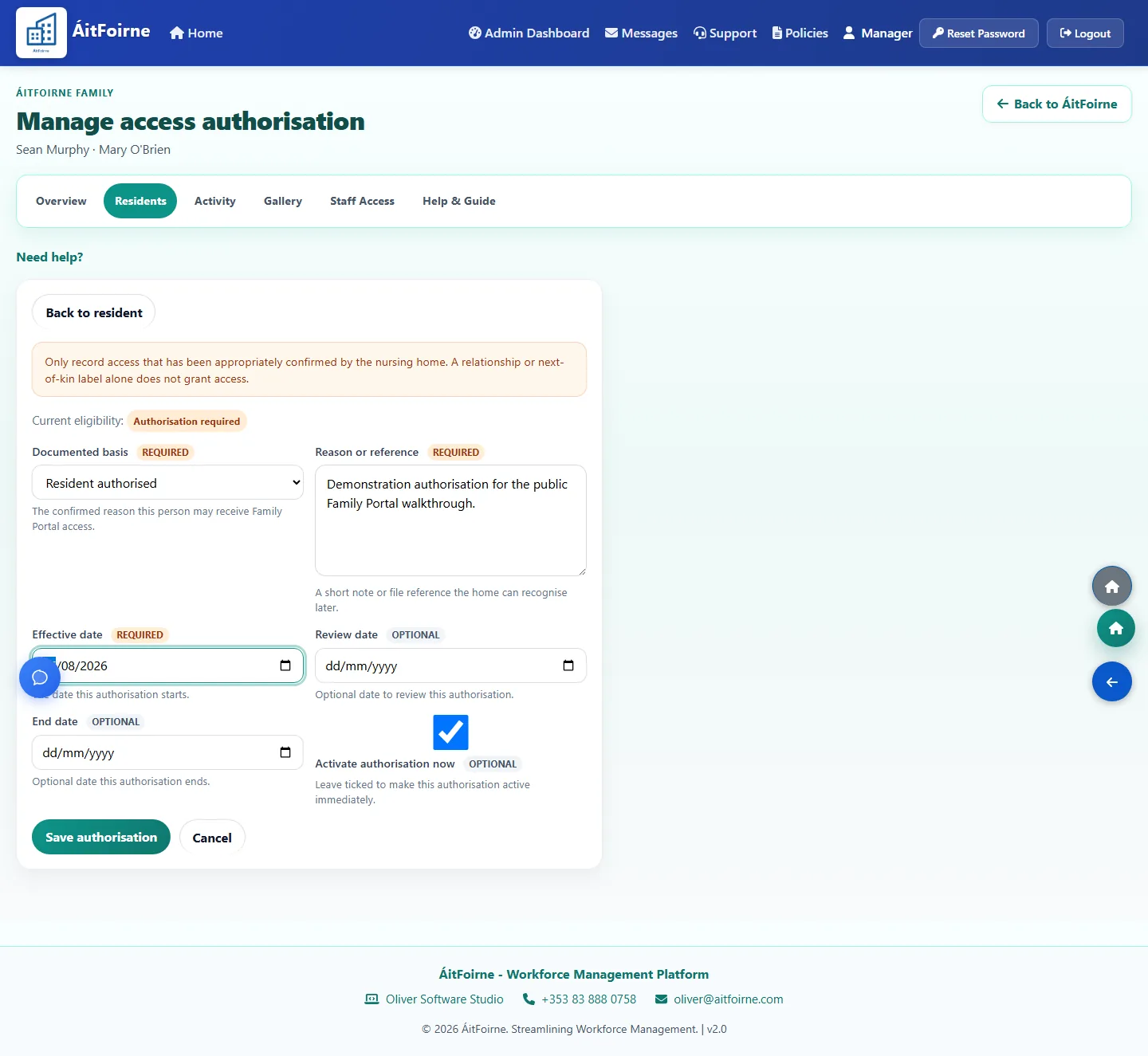
  • Family authorisation form for Sean Murphy and Mary O’Brien, with documented basis and activate now selected
    Record authorisation The home records why this person may receive Family access, then activates it.
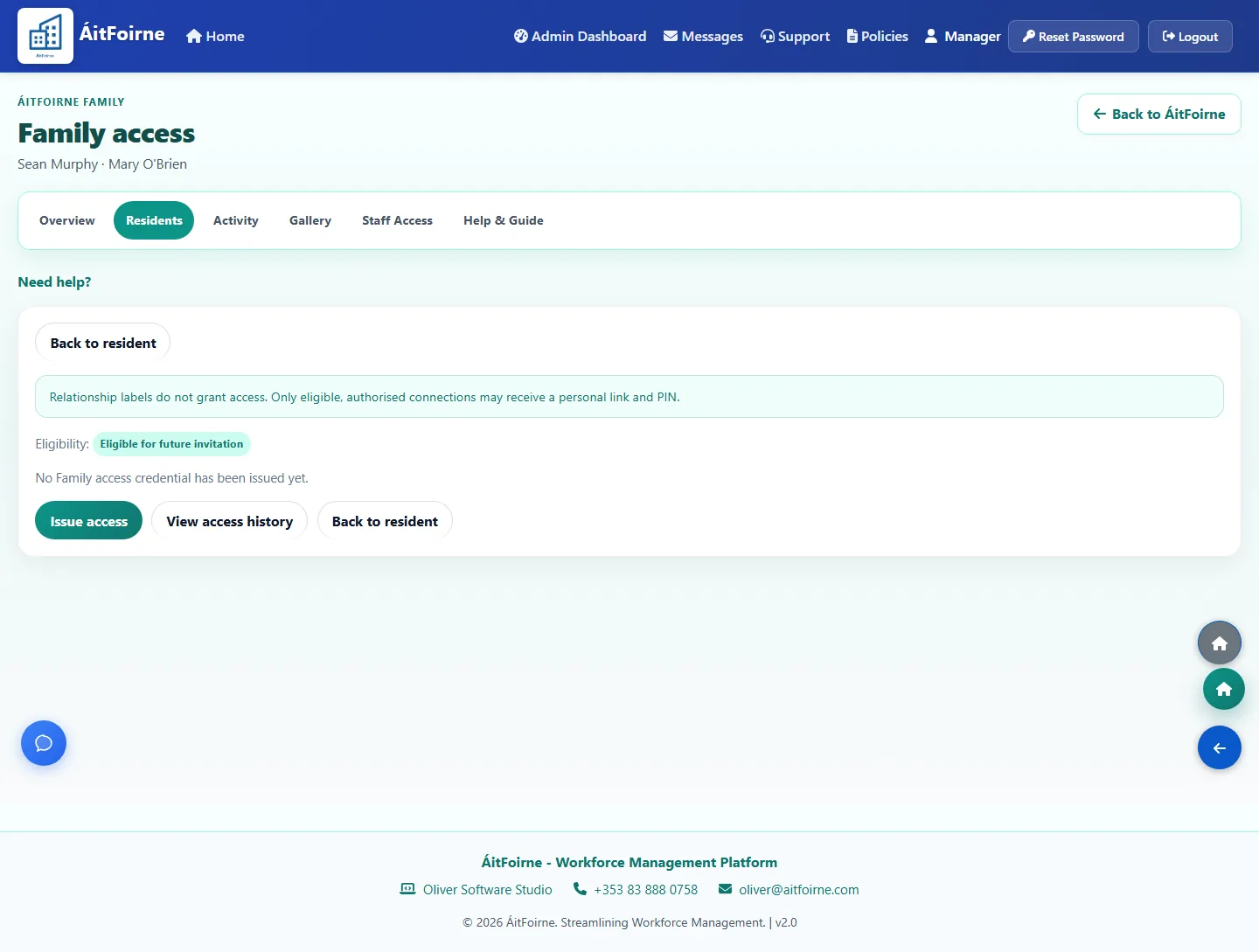
  • Family access page for Sean Murphy showing eligible status and an Issue access button, with no PIN digits on screen
    Issue the personal link and PIN Eligible relatives can receive a personal link and a six-digit Family PIN. The PIN is not the Time Clock PIN.
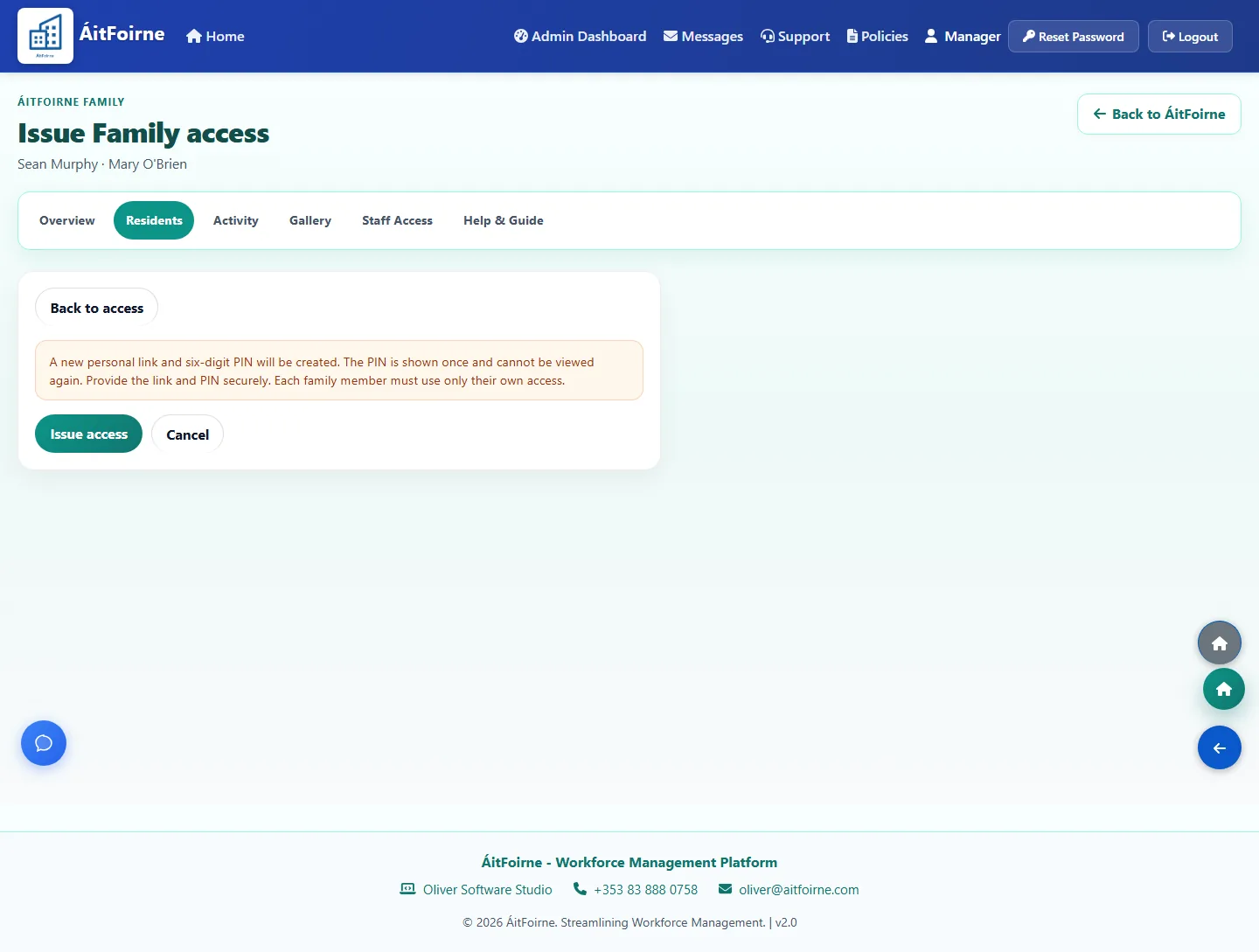
  • Issue Family access confirmation explaining that a personal link and six-digit PIN will be created and shown once
    Confirm before the PIN is shown The home confirms issue or rotate. The new PIN is shown once and the old link stops working if access was rotated.
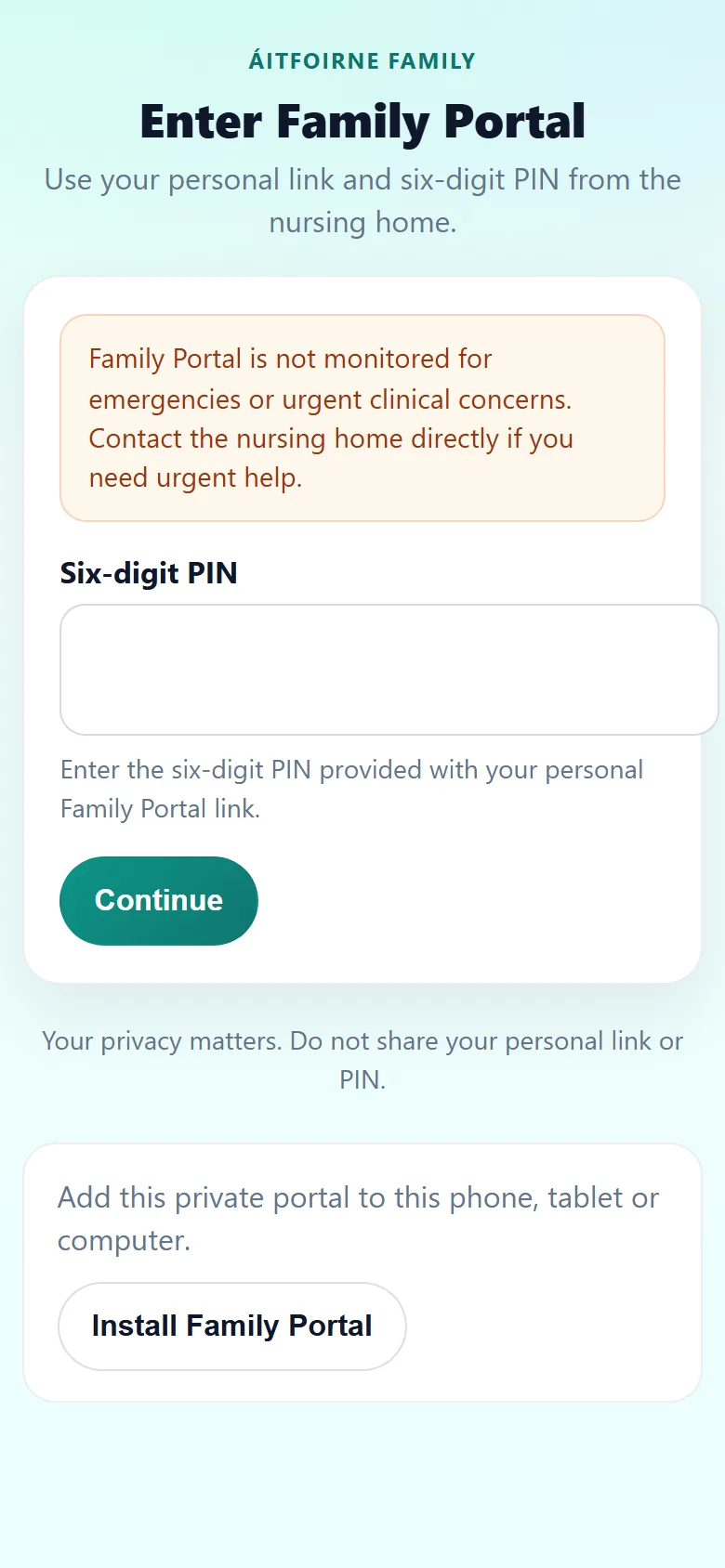
  • Family Portal phone screen titled Enter Family Portal, with an empty six-digit PIN field and a Continue button
    Open Family Portal with the PIN The relative opens their own link and enters the six-digit PIN. Installing the shortcut does not skip this step.

3. Messages, photos and showing a moment

The home can post a resident-specific update. A family member can send a message and up to five photos. Staff can then show that moment to the resident.
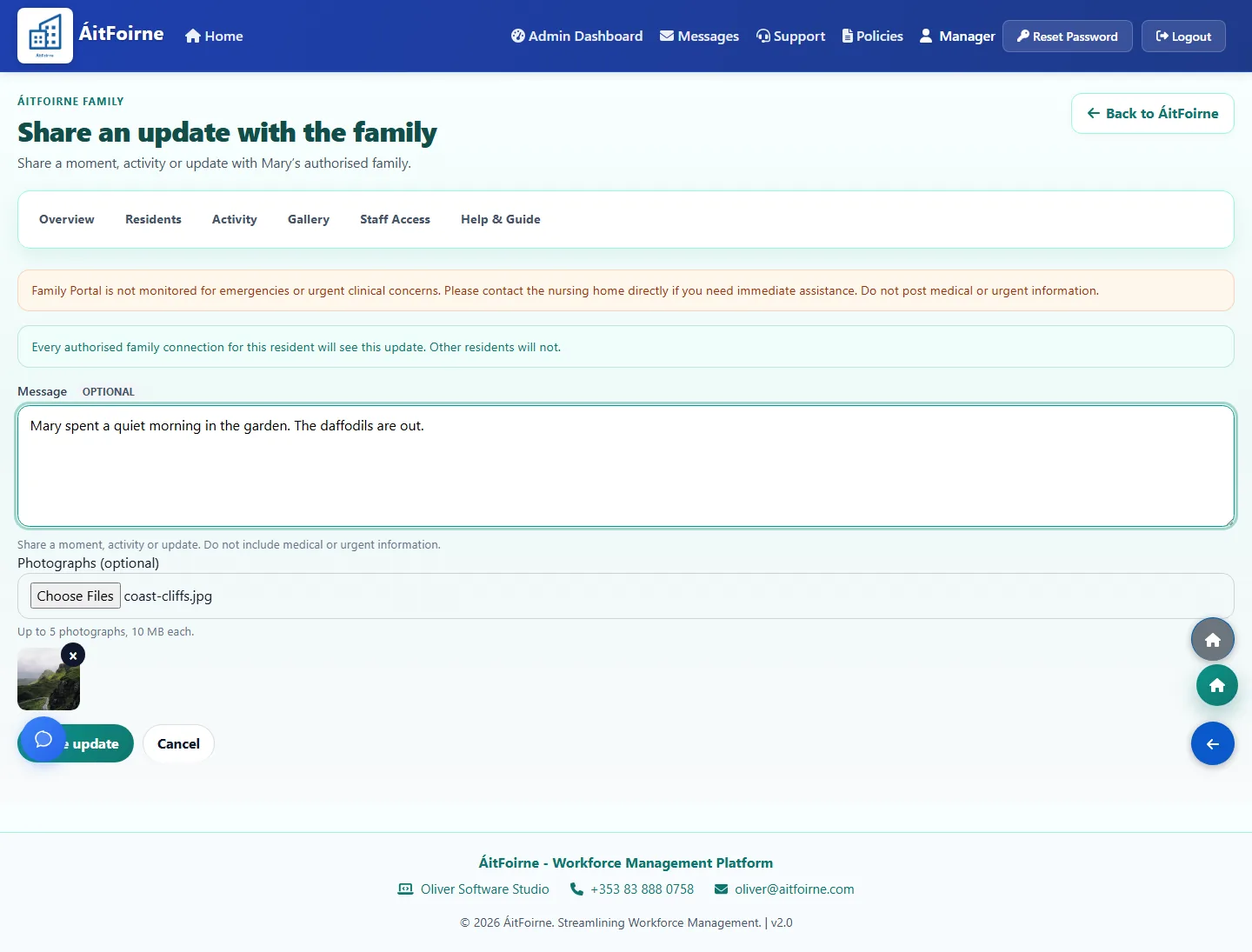
  • Share an update form for Mary, with a garden message and a nature photograph attached
    Care-home update A Coordinator or manager writes an update for one resident. It is not a message to every family in the building.
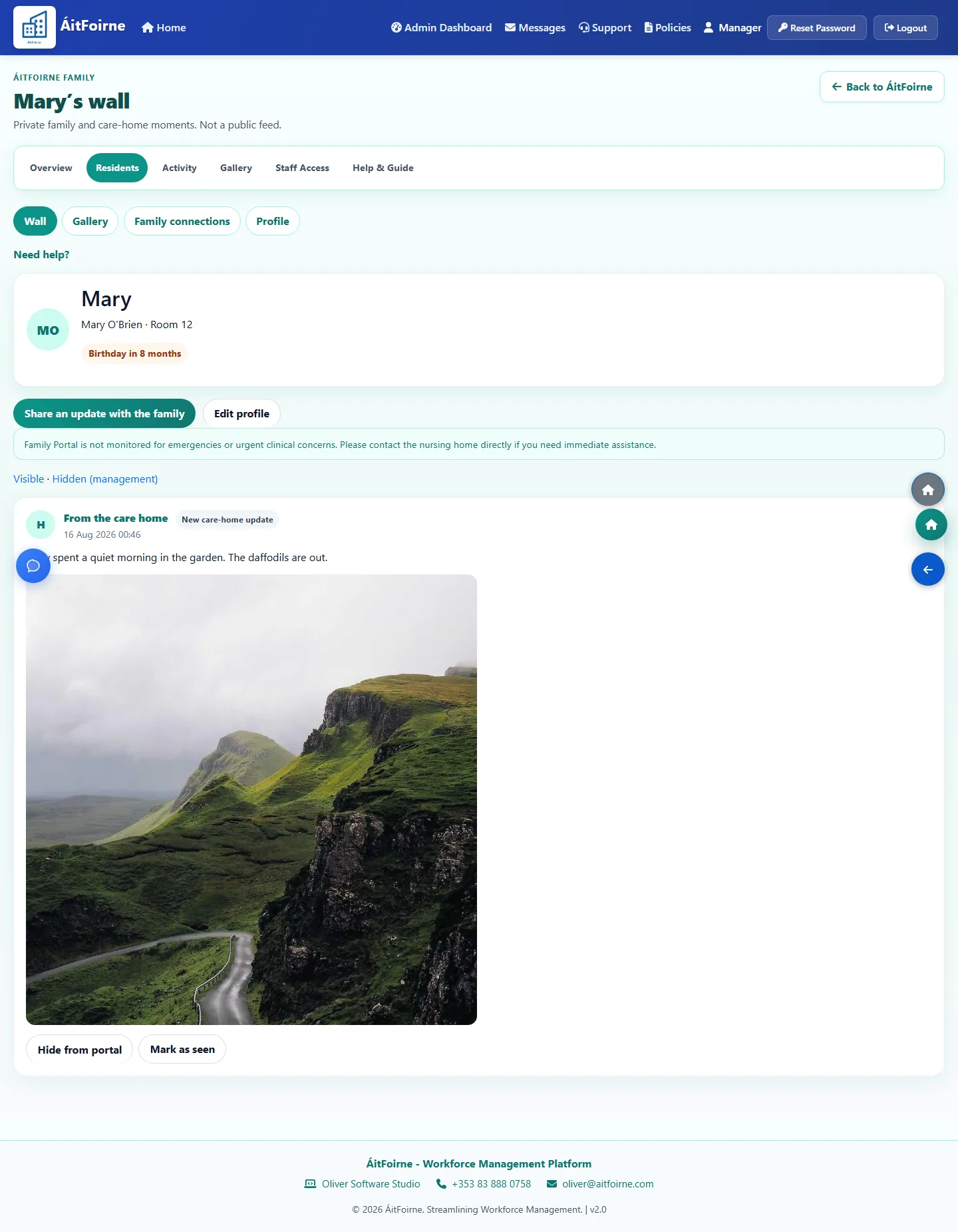
  • Mary’s Family wall showing a care-home update about the garden, with a mountain-road photograph
    Resident wall The wall holds care-home updates and family moments. Shared with the resident means it was presented, not that the person understood it.
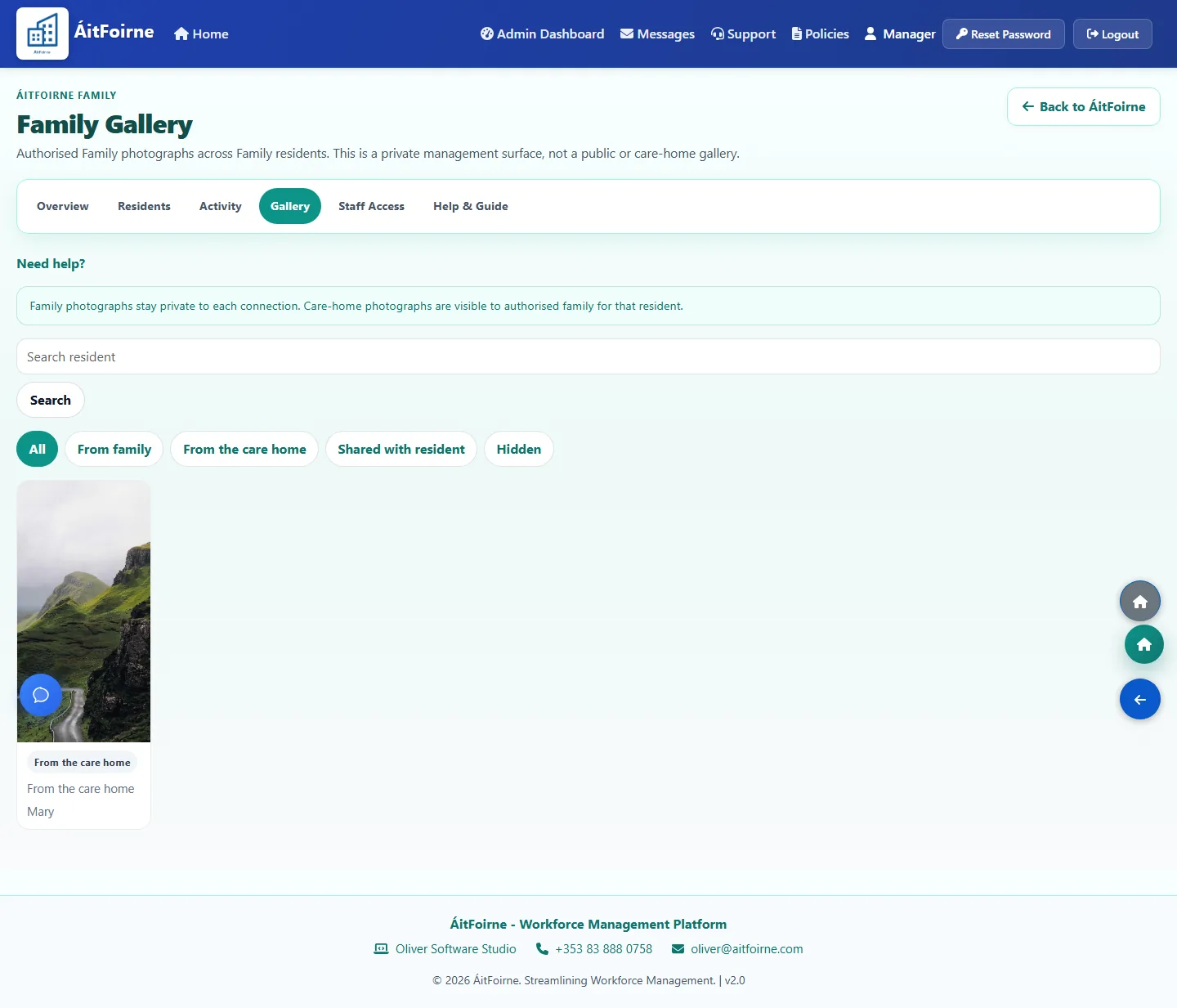
  • Family Gallery for Mary showing one care-home photograph of a mountain road and garden landscape
    Family Gallery Authorised photographs stay in a private gallery. This is not a public album.
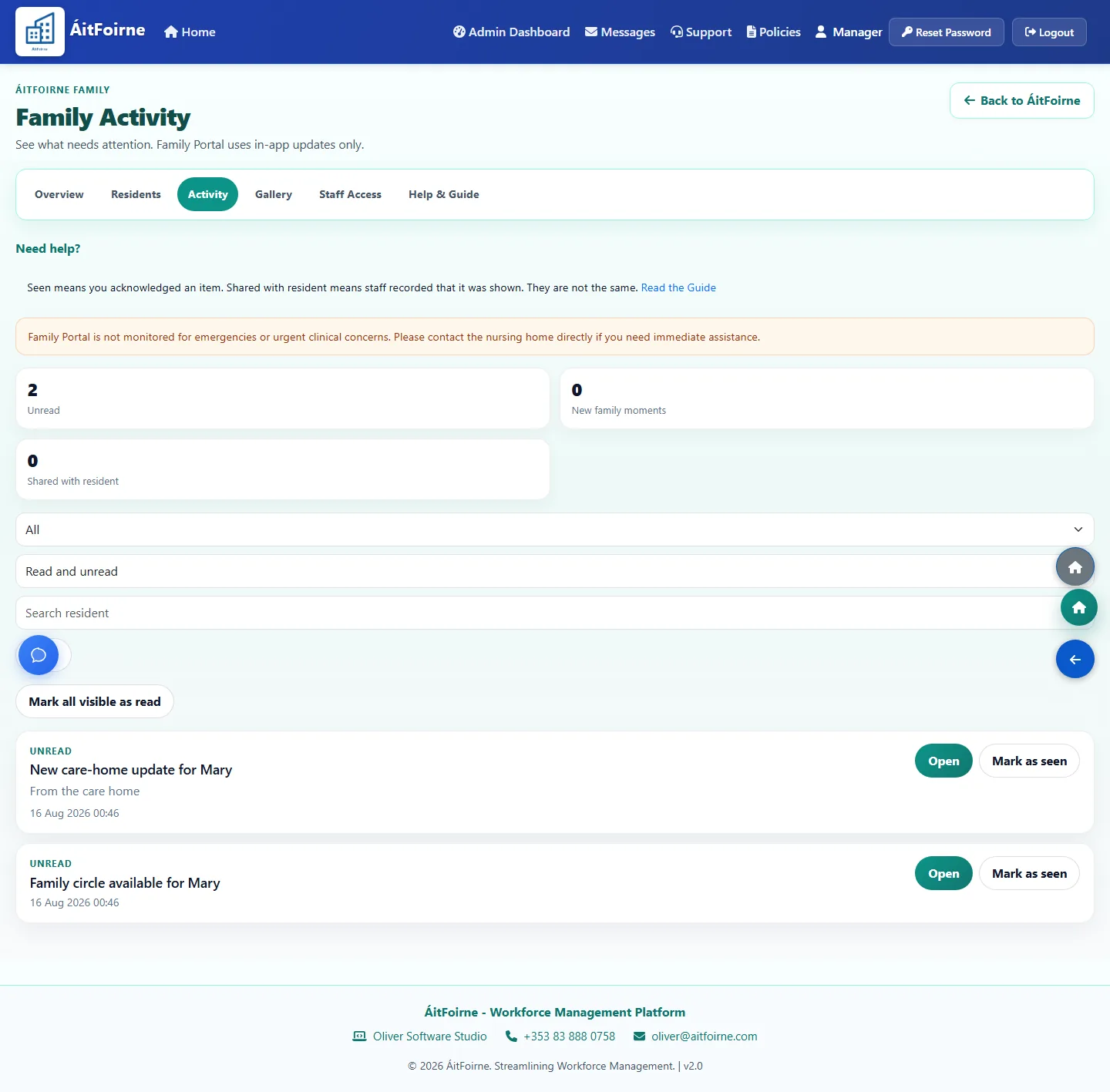
  • Family Activity inbox listing a new care-home update and Family circle availability for Mary
    Family Activity The home sees new moments in-app. Family Portal does not send email, text messages or phone alerts.
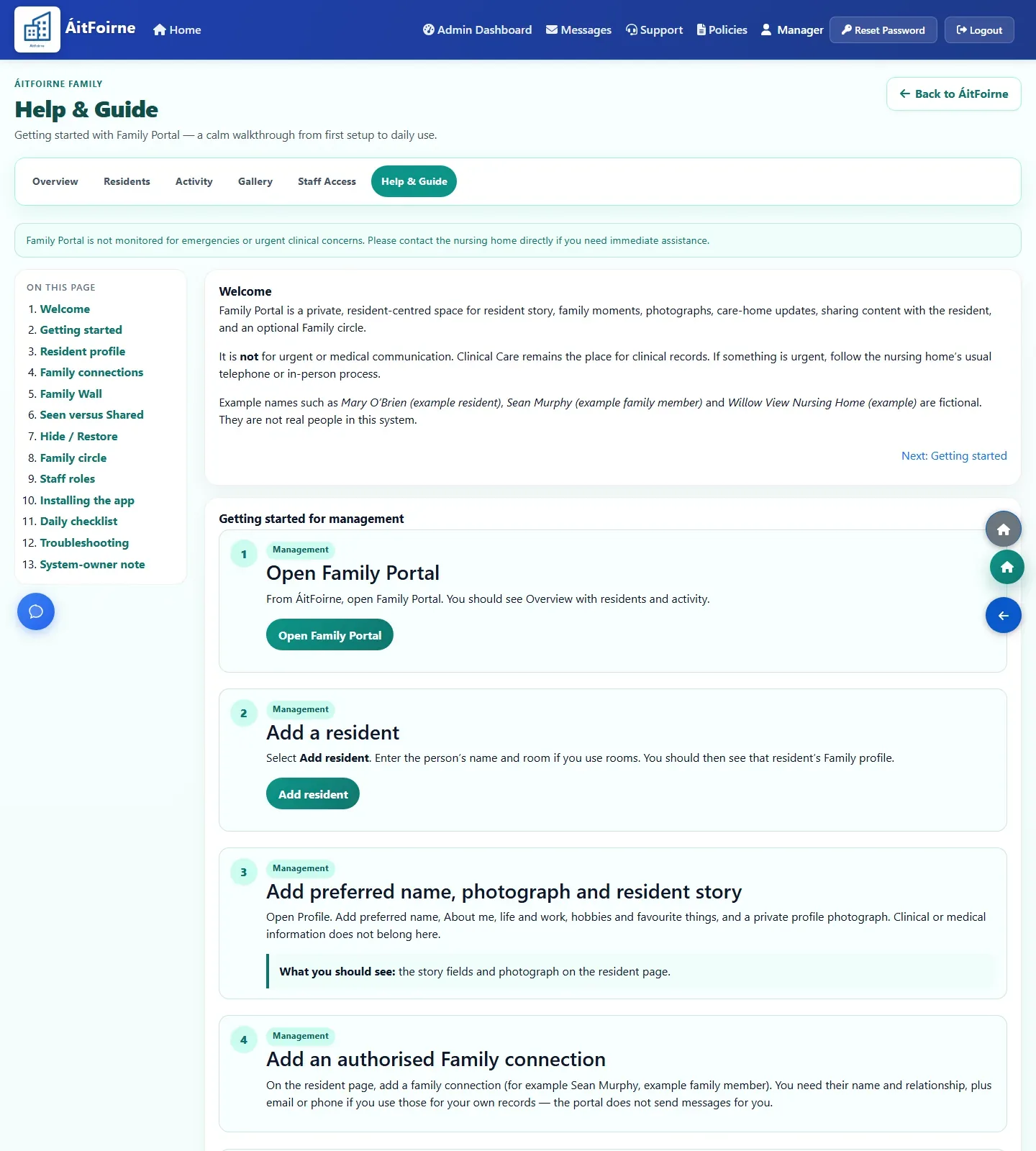
  • In-app Family Help and Guide with getting-started steps for opening Family Portal, adding a resident and issuing a PIN
    Help & Guide Signed-in managers can open Help & Guide beside the Family pages they are using.

From the home to the family

How a family member gets in

The home sets up access first. The relative then uses only their own link and PIN.

Office

Add the Family resident

This is a Family record. It is not the Clinical file and it does not copy medical notes.

Office

Name the relative and authorise them

A relationship label such as son or daughter is only a description. Access is a separate yes.

Office

Issue the personal link and PIN

The six-digit PIN is shown once. Give it privately to that person. Never put it on a notice board.

Family member

Open the link and enter the PIN

This is not an App Store app. It is a private web page. Installing it on the phone does not skip the PIN.

Family member

Send a message or photos

Up to five photos can go with a message. Another relative of the same resident does not see this private post unless Family Circle is used and both people have joined.

Home

See it in Family Activity

The home sees an in-app update. Family Portal does not send an email, text message or phone alert.

Staff

Show the moment to the resident

Staff can record Shared with the resident. That means it was presented. It does not mean the resident read, understood or enjoyed it.

Inside Family Portal

18 Family Portal areas in one place

The family member sees a simple private wall. The home sees the residents, connections, activity and staff tools that keep that wall safe.

For the family member

Personal link

Each authorised relative receives their own private Family Portal link. It is not a shared family login.

Six-digit Family PIN

The PIN is separate from the Time Clock PIN and from any ÁitFoirne staff password.

Messages

Send a short message to the home about that resident.

Photos

Send up to five photos with a message. Photos stay private to that connection.

Updates

See in-app updates such as We received your message, or Shared with the resident.

Your family moments

A private gallery of photographs from this connection only.

Install Family Portal

Add the private portal to a phone or tablet. Installing it does not keep anyone signed in.

Lock

Leave the session so the next person must enter their own PIN.

For the nursing home

Family residents

A Family resident record is separate from the Clinical file. It holds the story the family may see, not diagnoses or care plans.

Connections

Name each relative and keep a descriptive relationship. The label does not grant access by itself.

Authorisation

Access is an explicit record. A son or daughter label is not enough on its own.

Credentials

Issue, rotate or revoke the personal link and PIN. The PIN is shown once.

Care-home posts

The home can post a resident-specific update. It is not a broadcast to every family in the building.

Show to resident

Staff can record that a moment was shown to the resident. That does not mean the resident read or understood it.

Family Activity

An in-app inbox for the home. Family Portal does not send email, text messages or phone alerts.

Family Circle

An optional, consent-based circle among relatives of one resident. It is off until the home enables it.

Staff access

A Family Coordinator or Family Presenter is assigned explicitly. A job title does not open Family Portal.

Help & Guide

In-app guidance for authorised managers beside the Family pages they are using.

Clear limits

What Family Portal does not do

Families should know the boundary before they start. This keeps resident information in the right place.

  • It does not show Clinical notes, assessments, care plans, medicines or diagnoses.
  • It does not send email, text messages or phone alerts. Updates stay inside Family Portal.
  • It is not watched for emergencies. If someone is unwell, telephone the home.
  • It is not a public social network. There are no likes, public comments or public sharing links.

Need the button-by-button steps? Open Family Portal help or see Clinical if you meant resident care records.

Ready to see ÁitFoirne in your home?

Book a short online walk-through tailored to how your nursing home runs today.

Book a Demo
Back to top