
What this area is for
Care Portal is the large-button tool staff use on the floor. It lives on a workplace tablet, phone or ward computer.
It is not an app from the App Store or Google Play. You open the Care Portal link, then you can add it to the home screen so staff can find it quickly.
Installing Care Portal does not keep anyone signed in. Every person must still:
- Confirm the workplace.
- Select their own name.
- Enter their own Care Portal PIN.
Before you start
- Use a device that stays in the nursing home.
- Ask the Clinical Manager for the Care Portal link used by your home.
- Make sure the staff member already has Clinical access and a Care Portal PIN.
- Do not install Care Portal on a personal phone that leaves the building, unless your home has agreed that.
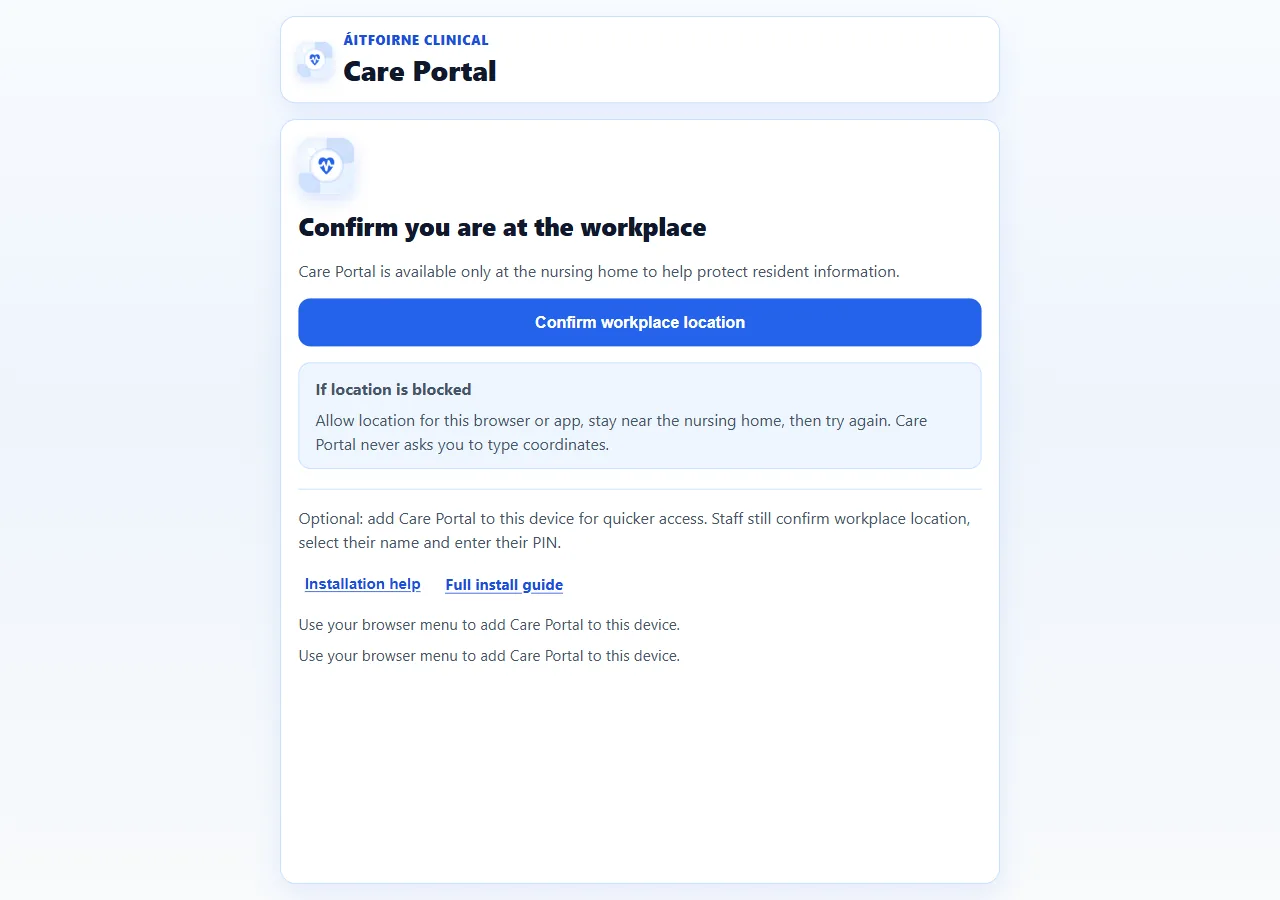
If the screen asks you to confirm the workplace, that is normal. Care Portal hides staff names and residents until the device is at the home.
Step-by-step: open Care Portal the first time
- On the workplace device, open the internet browser.
- Open the Care Portal link for your home. It ends with
/clinical/care/. - Wait for the Care Portal screen. You should see Confirm workplace location before any staff list.
- Select Confirm workplace location.
- If the device is at the home, the staff list should appear.
- Do not enter a PIN yet if you are only installing the shortcut. You can add it to the home screen first.
If the device is not at the workplace, Care Portal will stop. Move closer to the home and try again. Do not ask someone in the office to “override it”.
Android phone or tablet
- Open Care Portal in the browser.
- Select Install Care Portal when the button appears.
- Confirm the install.
- Open Care Portal from the device home screen next time.
iPhone or iPad
- Open Care Portal in Safari. Other browsers on iPhone often cannot add it properly.
- Tap Share.
- Choose Add to Home Screen.
- Keep the name Care Portal.
- Tap Add.
- Open the new Care Portal icon from the home screen.
Windows or a desktop browser
- Open Care Portal in a supported browser, such as Chrome or Edge.
- Look for Install in the address bar, or in the browser menu.
- Select Install Care Portal if you see that button.
- Open Care Portal from the installed shortcut next time.
Browser menus look a little different on each computer. If you cannot see Install, keep using the ordinary browser tab. Care Portal still works.
After it is installed
- The icon is only a shortcut. It is not a signed-in person.
- The next staff member still confirms the workplace and enters their own PIN.
- When a person finishes, they must select Lock / Switch staff.
- If nobody uses Care Portal for a few minutes, it locks itself.
What not to do
- Do not save a PIN in the browser.
- Do not tick “remember me” if the browser offers it.
- Do not tape a PIN to the back of the tablet.
- Do not leave Care Portal unlocked and walk away.
- Do not install Care Portal from a random email or text message. Use only the link your Clinical Manager gives you.
Questions people ask
The Install Care Portal button is missing.
That is all right. Care Portal still works in the browser tab. On iPhone, use Safari and Add to Home Screen. On a computer, look in the browser menu for Install.
We installed it, but it still asks for a PIN.
That is correct. Installing only adds a shortcut. It never signs a person in.
The screen says we are not at the workplace.
Take the device back to the home. Check that location is turned on for the browser. Then select Confirm workplace location again. If it still fails, ask a manager to check the home’s workplace location setting used by the Time Clock.
Can I download Care Portal from the App Store?
No. There is no App Store or Play Store app for Care Portal. Use the home’s Care Portal link, then add it to the home screen.