Accessing Your Employee Portal
Open your browser and go to the link provided by your manager. Enter your credentials and password and click Login.
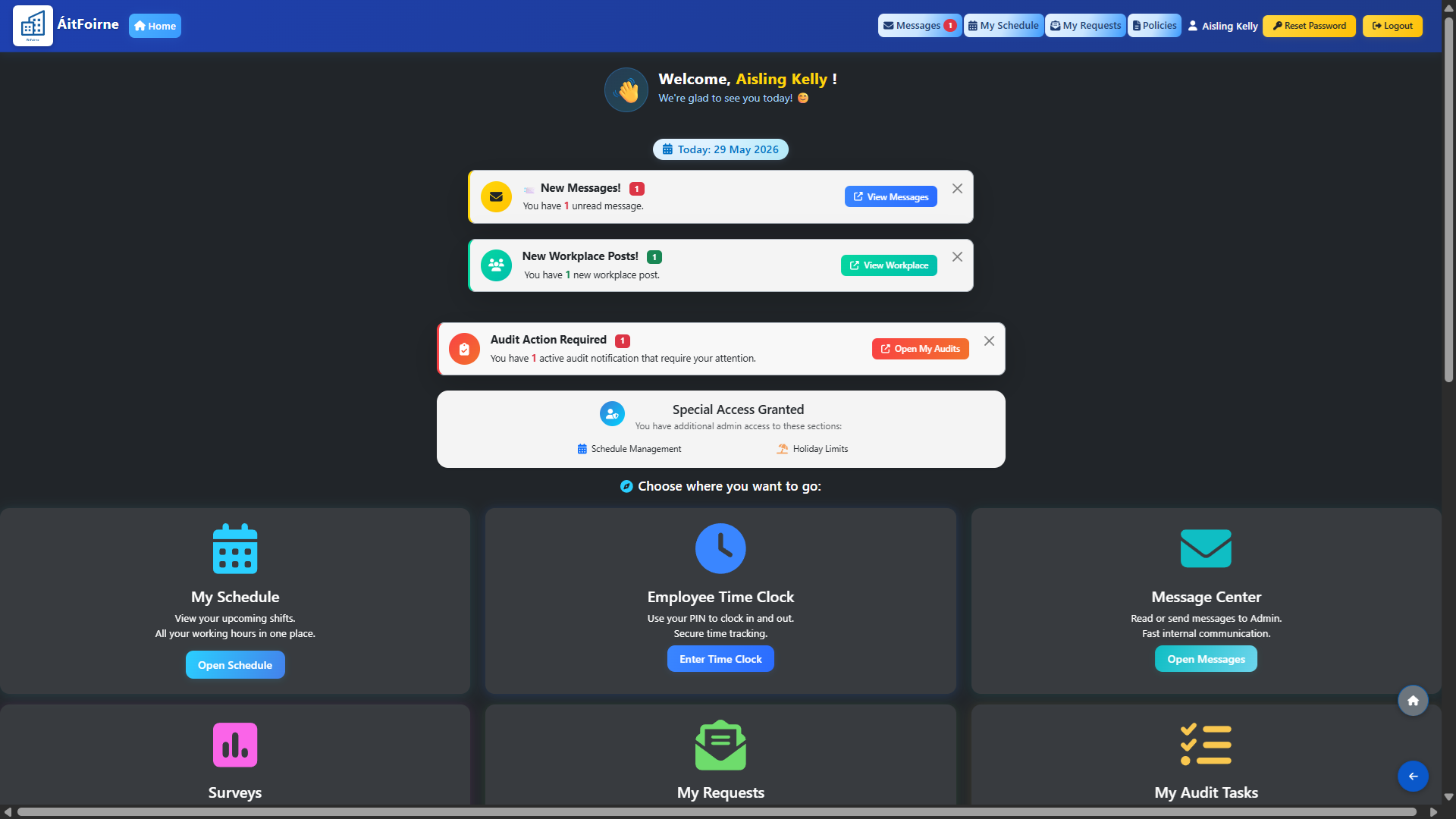
You will be taken directly to your personal Employee Dashboard.
This is your home screen — everything available to you is accessible from here.
What You Can See on Your Dashboard
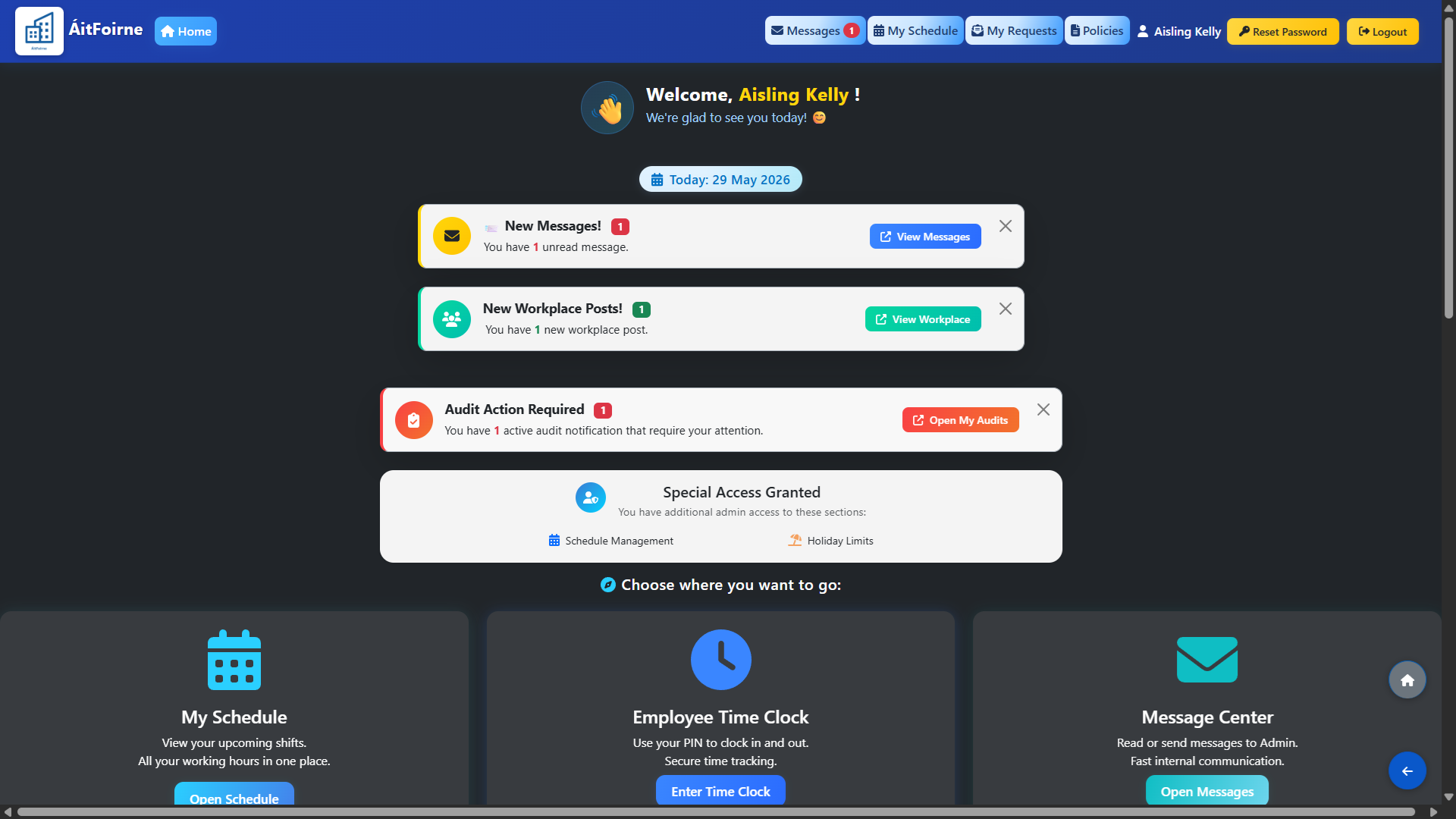
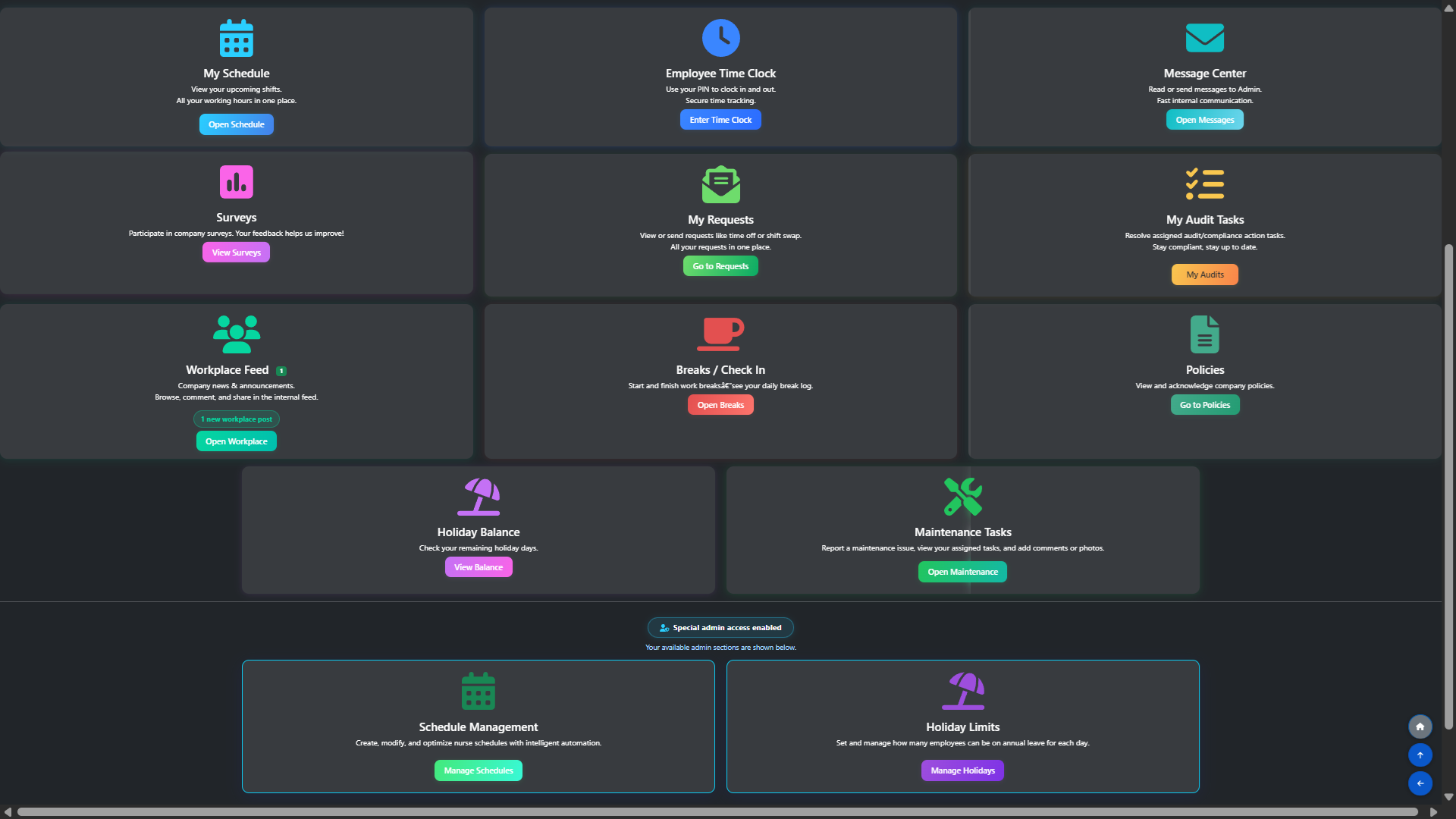
Your dashboard displays all sections available to you as tiles. Each tile shows the section name, a short description, and a notification badge if there is something new or requiring your attention. The following sections are available to every employee by default:
- My Schedule — view all your upcoming shifts and working hours in one place.
- Employee Time Clock — clock in and out using your personal PIN for secure time tracking.
- Message Center — send and receive messages directly with your admin or management team.
- Surveys — participate in company surveys and share your feedback.
- My Requests — submit and track requests for time off or shift swaps.
- My Audit Tasks — view and complete any compliance or audit action tasks assigned to you.
- Workplace Feed — browse company news, announcements, photos and videos posted by your team.
- Breaks / Check In — log your work breaks and view your daily break history.
- Policies — read and acknowledge your company's policies.
- Holiday Balance — check your remaining holiday entitlement for the current year.
- Maintenance Tasks — report a maintenance issue, view your assigned tasks and add comments or photos.
If your manager has granted you additional portal access, a separate Admin Access section will appear below your standard tiles, showing the extra sections available to you — such as Schedule Management, Holiday Limits or any other delegated area.
Finding Your Way Around
Click on any tile from your dashboard to open that section directly. You can return to your dashboard at any time by clicking the home or dashboard link in the top navigation bar.
The sections visible to you depend on your role and any additional access granted by your manager. If you believe you are missing access to a section you need, contact your manager to request the appropriate permissions.