Open Audit & Compliance
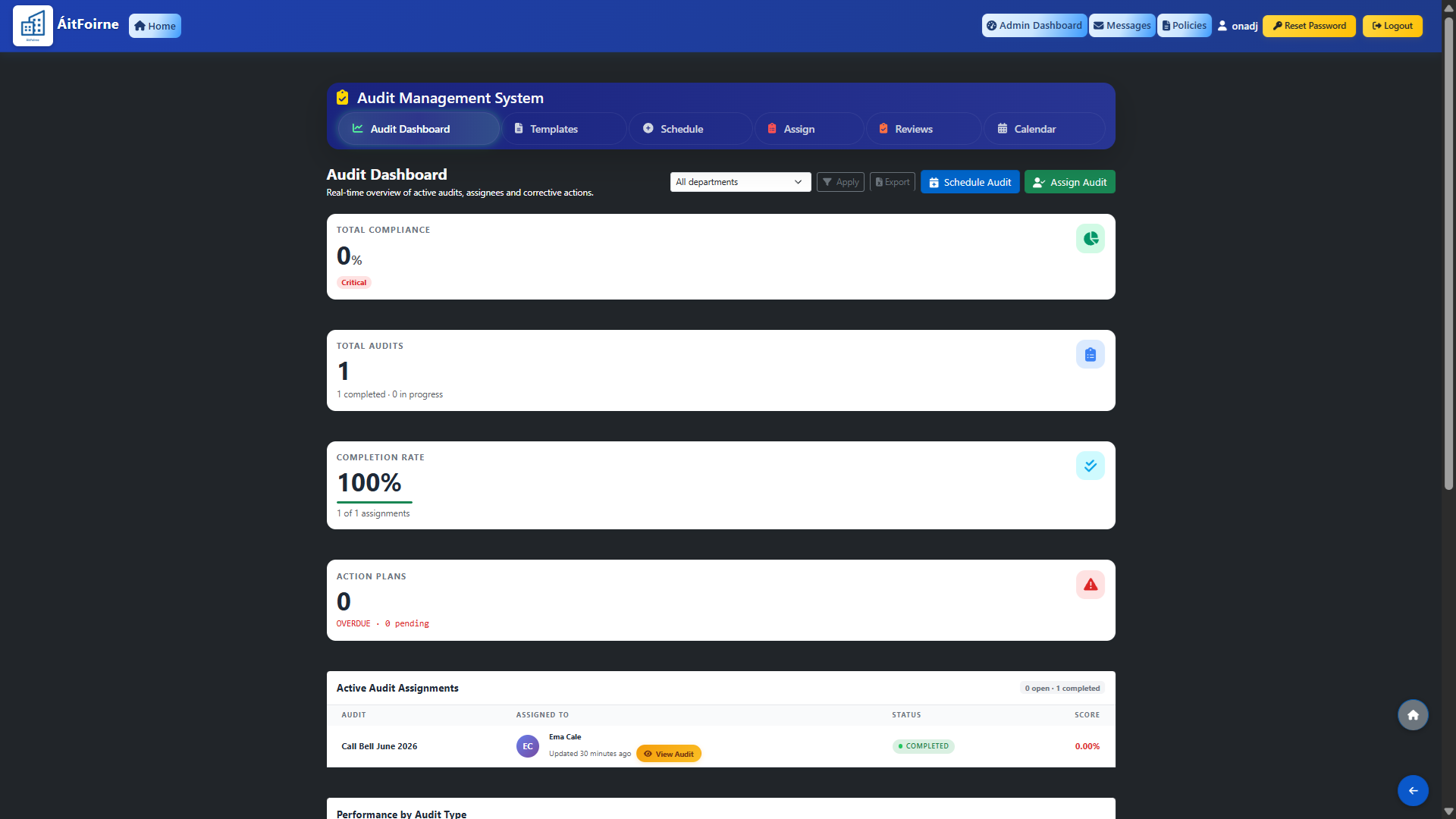
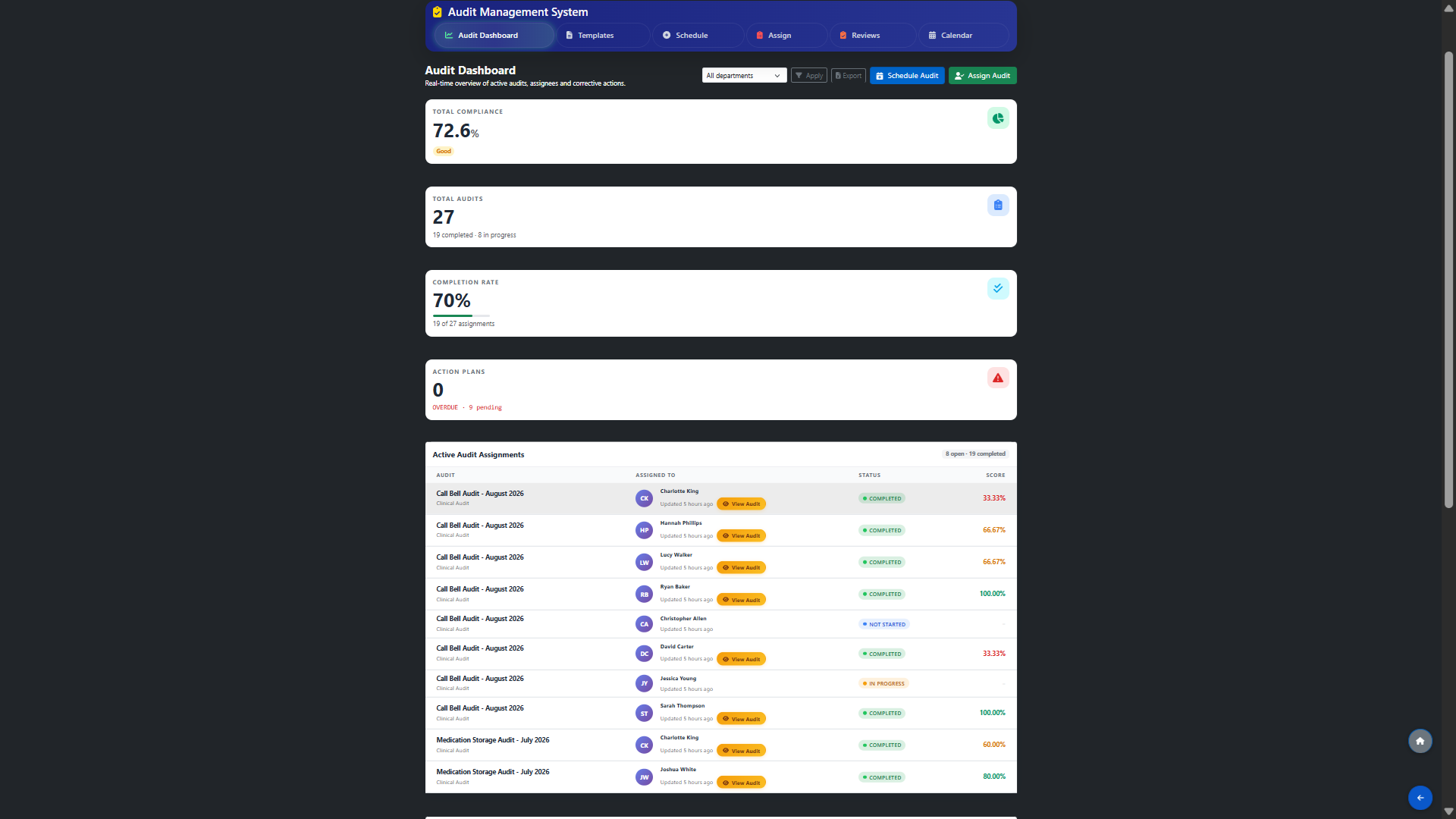
From your main dashboard, navigate to Audit & Compliance in the left-hand menu. You will see the Audit Dashboard with an overview of Total Compliance, Total Audits, and Completion Rate. From here, click the Templates tab in the top navigation bar.
Create an Audit Template
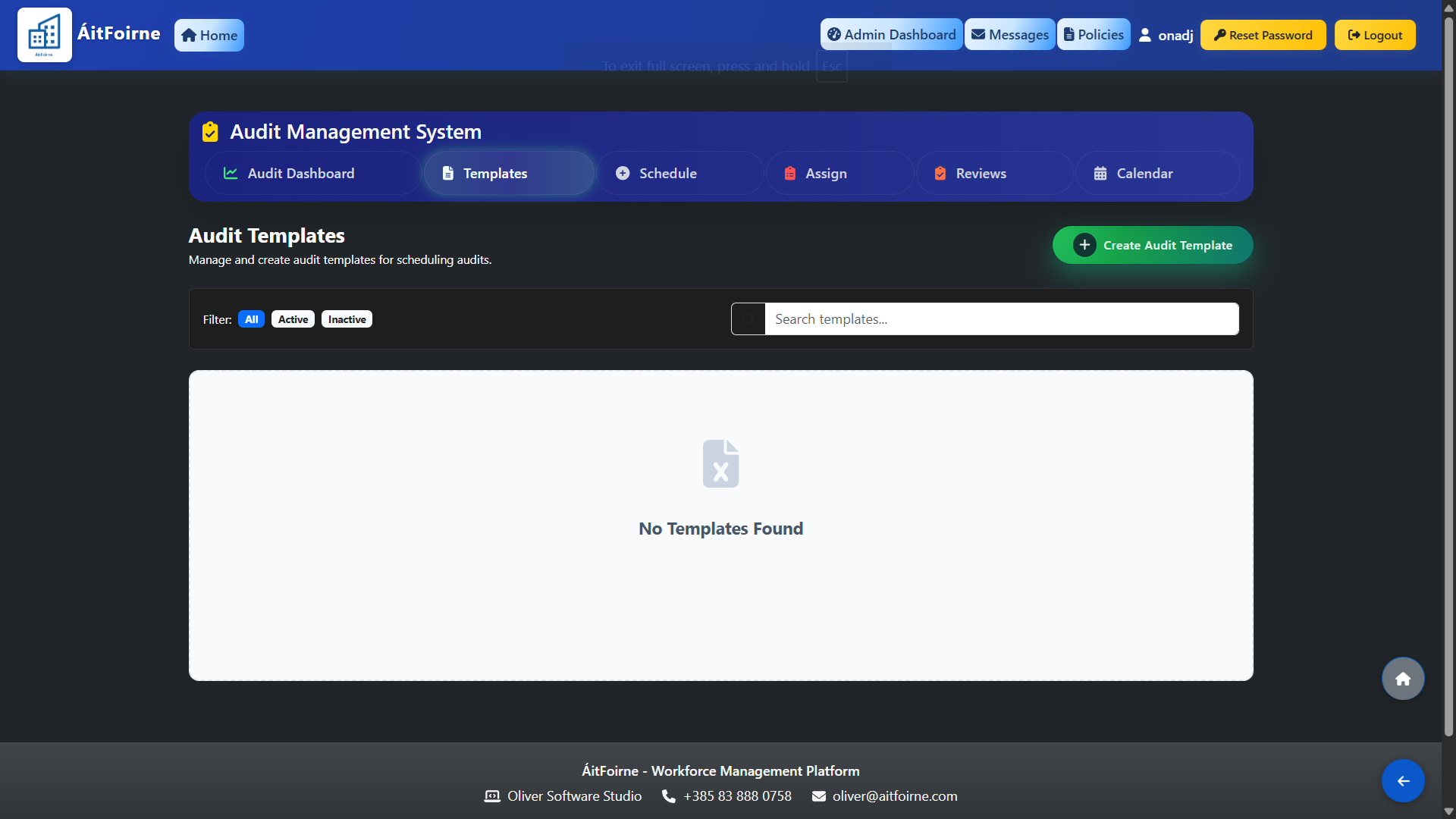
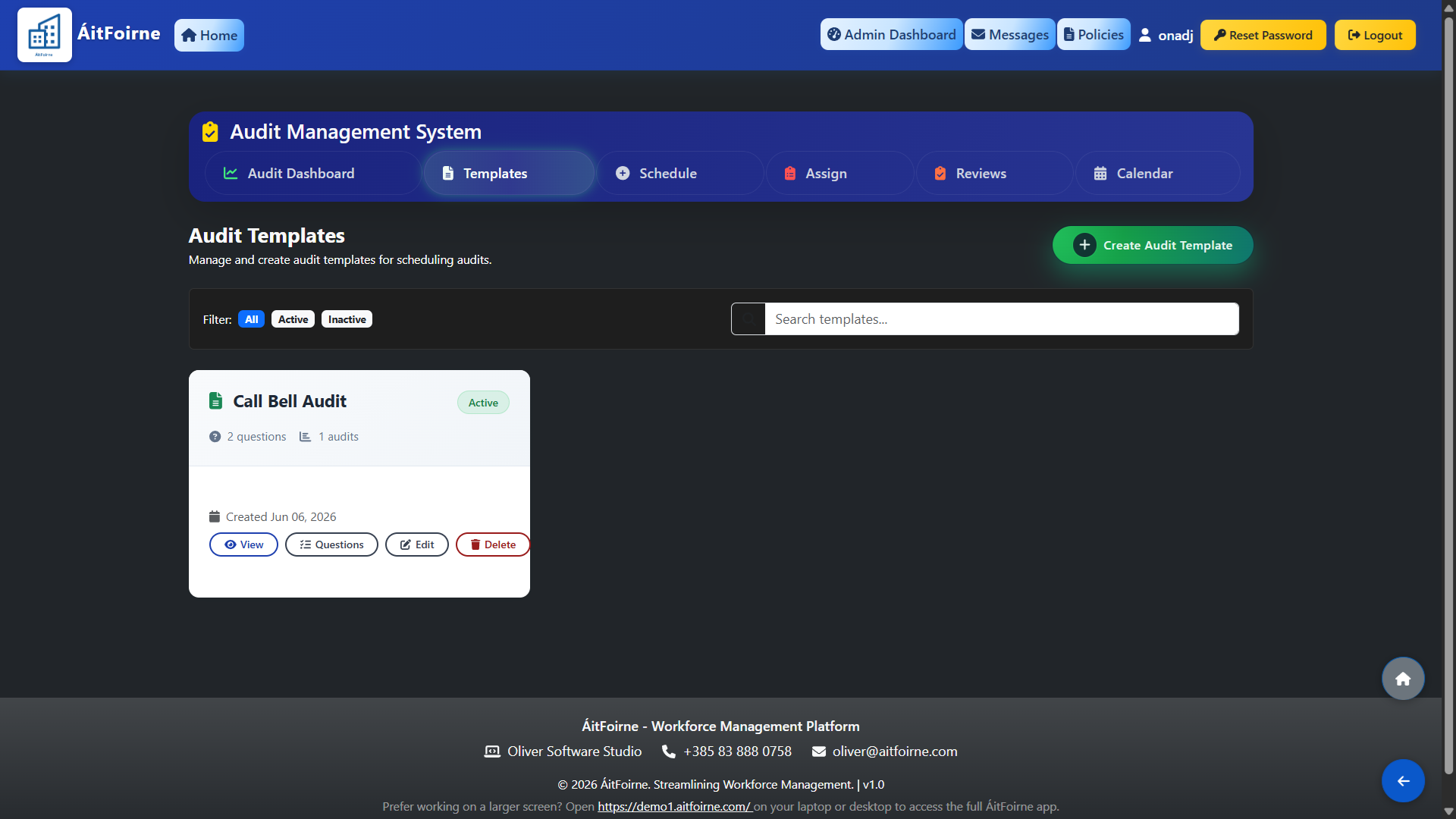
On the Audit Templates page, click the green + Create Audit Template button in the top-right corner. Fill in the Template Name (e.g. "Bell Audit") and a short Description. Click Save & Continue to proceed.
Add Questions to the Template
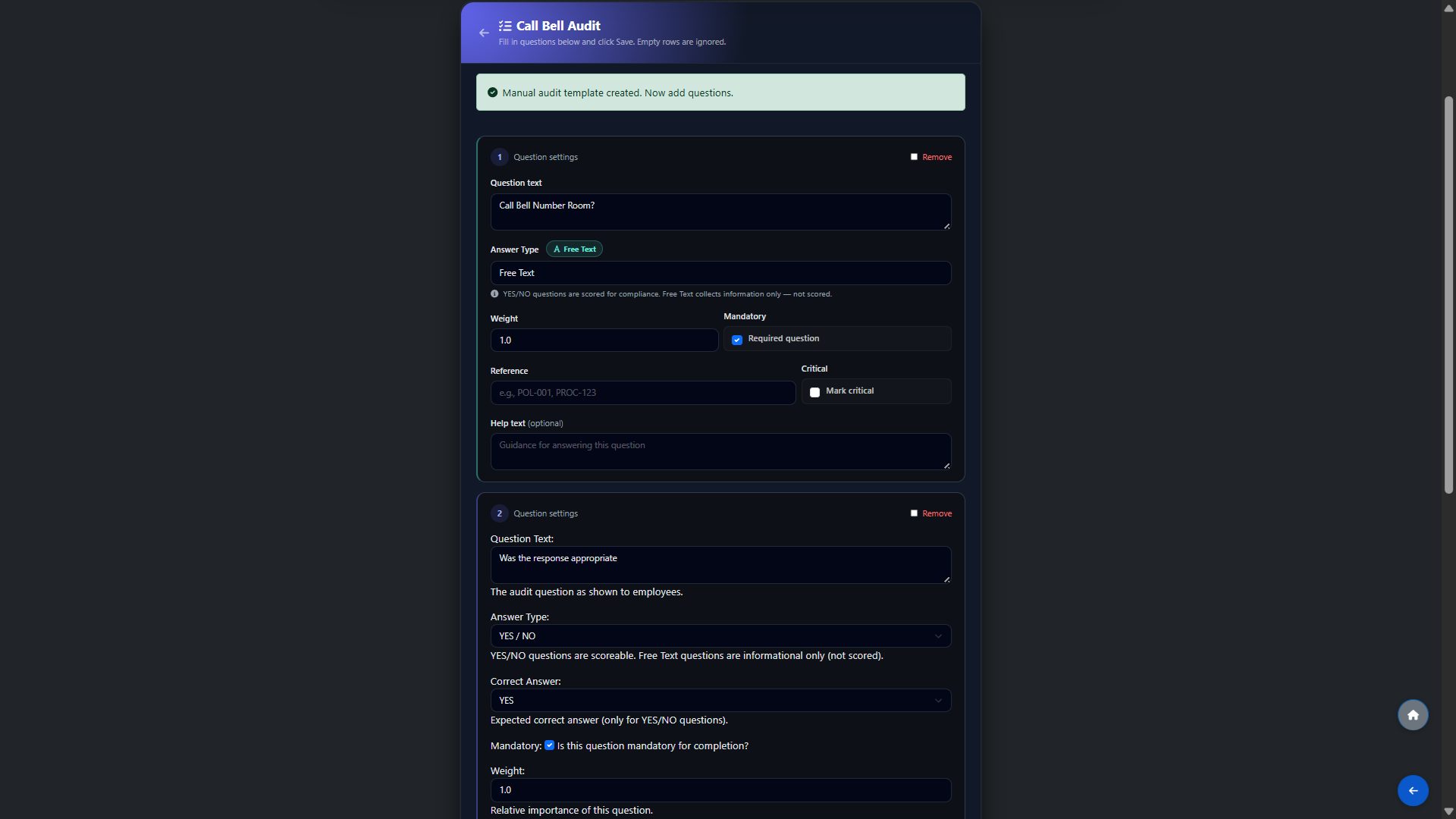
For each question, enter the Question Text, select the Answer Type (YES / NO for scored questions, or Free Text for observations), optionally set the Correct Answer, assign a Weight (default 1.0), and tick Mandatory if required. Repeat for all questions, then click Save.
Assign the Audit to an Employee
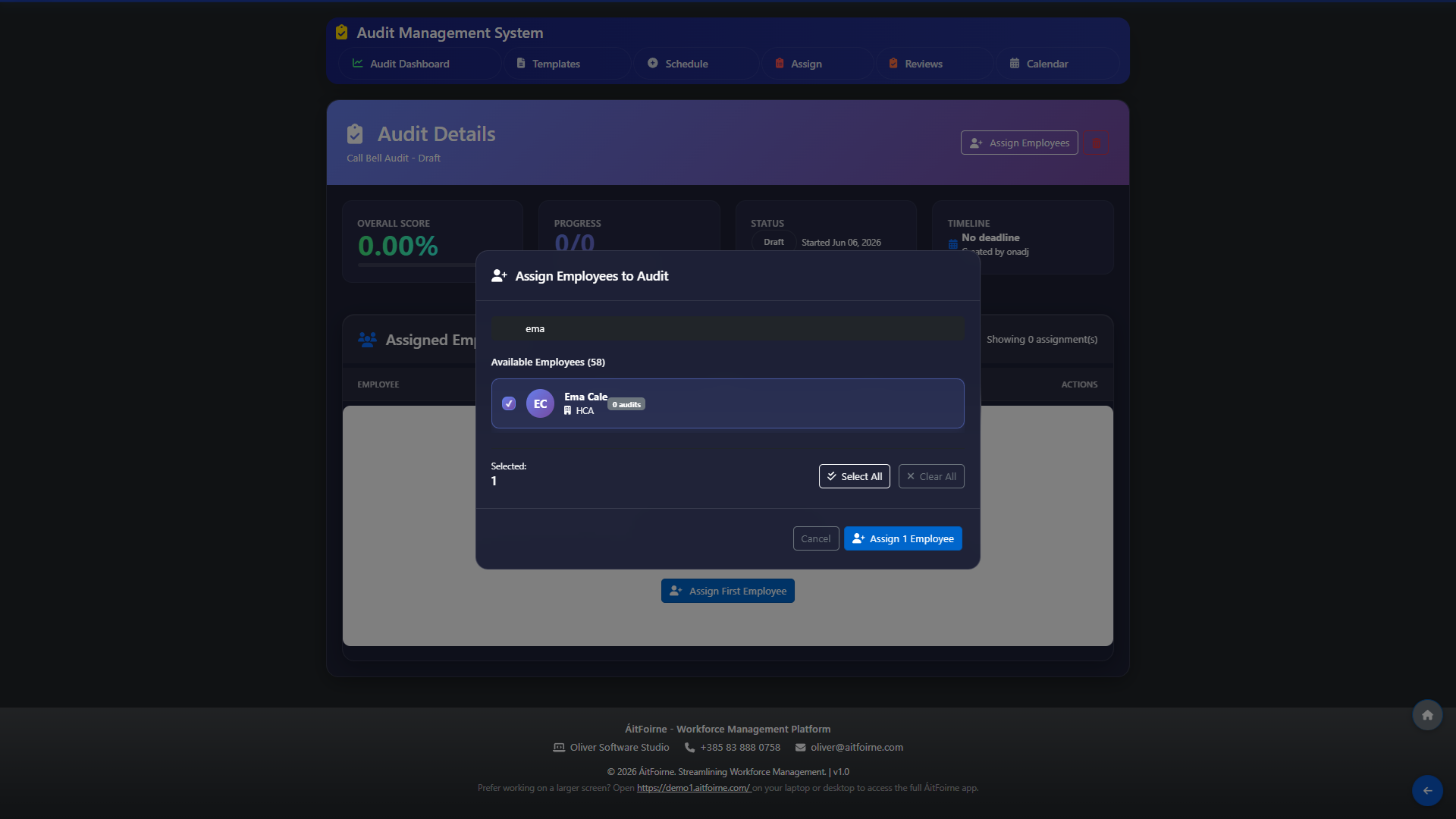
Click the Assign tab in the top navigation. Select the Template, choose the Employee(s), and set a Due Date. Click Assign. The employee will now see the audit in their Employee Portal.
Employee Completes the Audit
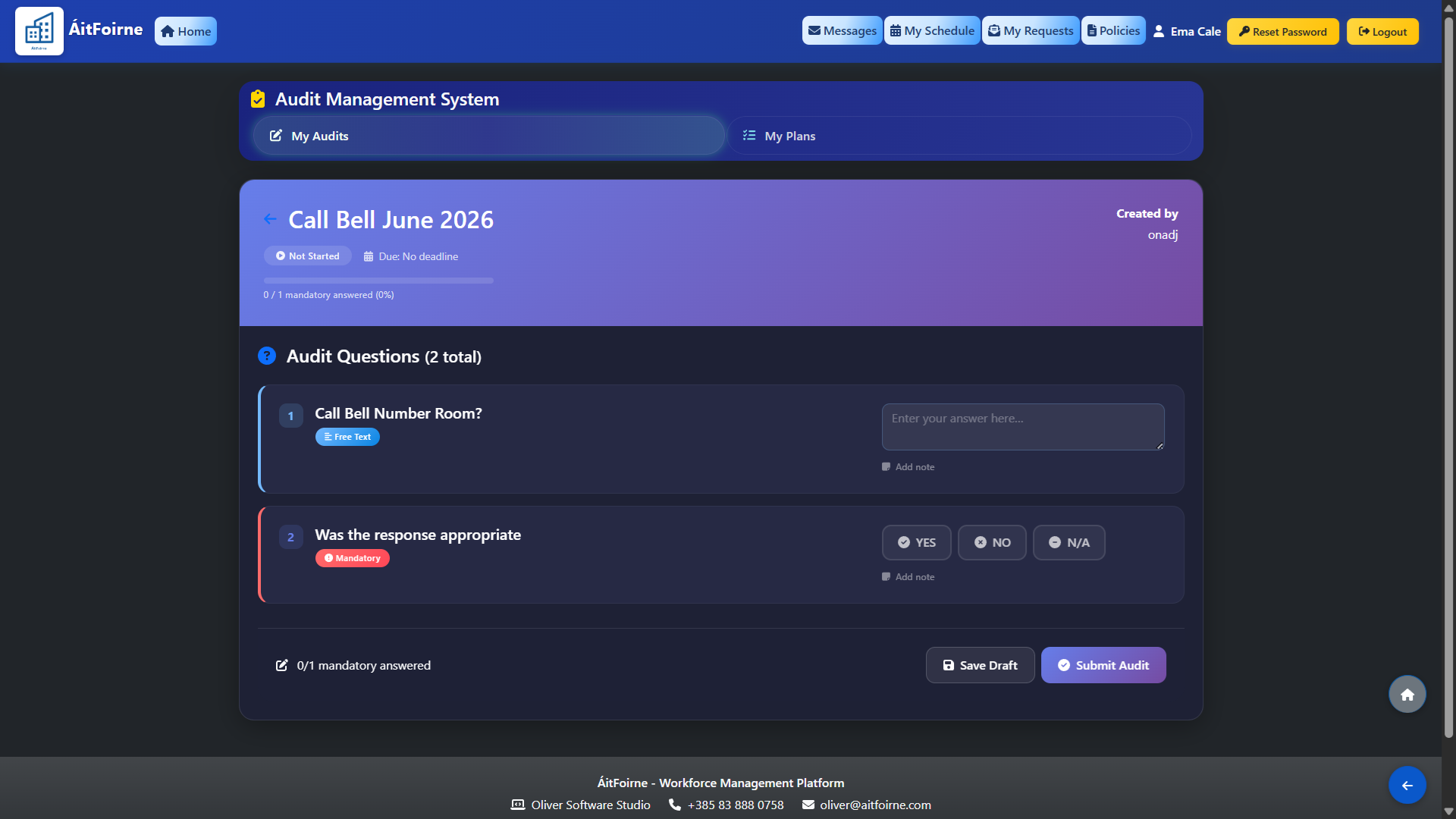
The assigned employee logs into their Employee Portal and sees the audit listed under their pending tasks. They open it, answer each question, and click Submit.
Employee Completes the Audit
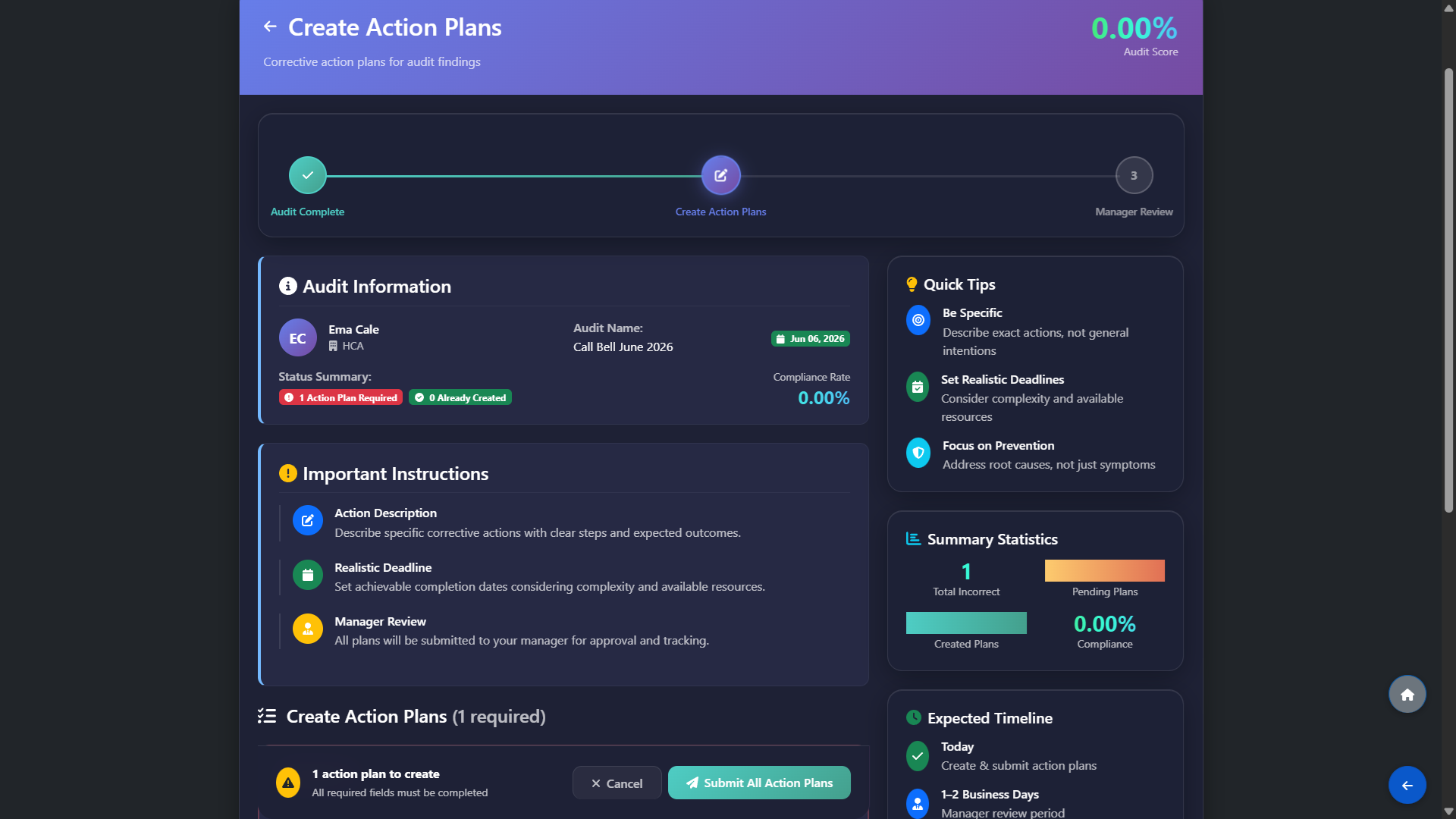
If one or more YES/NO questions were answered incorrectly, the employee is taken to the Create Action Plans screen before the audit can be submitted. This step is required — the audit cannot be submitted until all action plans are completed.
On this screen the employee will see: - Audit Information — their name, audit name, date, and current compliance rate - Number of action plans required (one per incorrect answer) - Important Instructions — be specific, set realistic deadlines, focus on prevention
For each incorrect answer, the employee must fill in a corrective action plan describing the steps they will take to address the issue, along with a realistic completion deadline. Once all plans are submitted, the audit proceeds to Manager Review.
Note: Free Text questions do not trigger action plans — only YES/NO questions with a set correct answer.
Admin Reviews & Approves
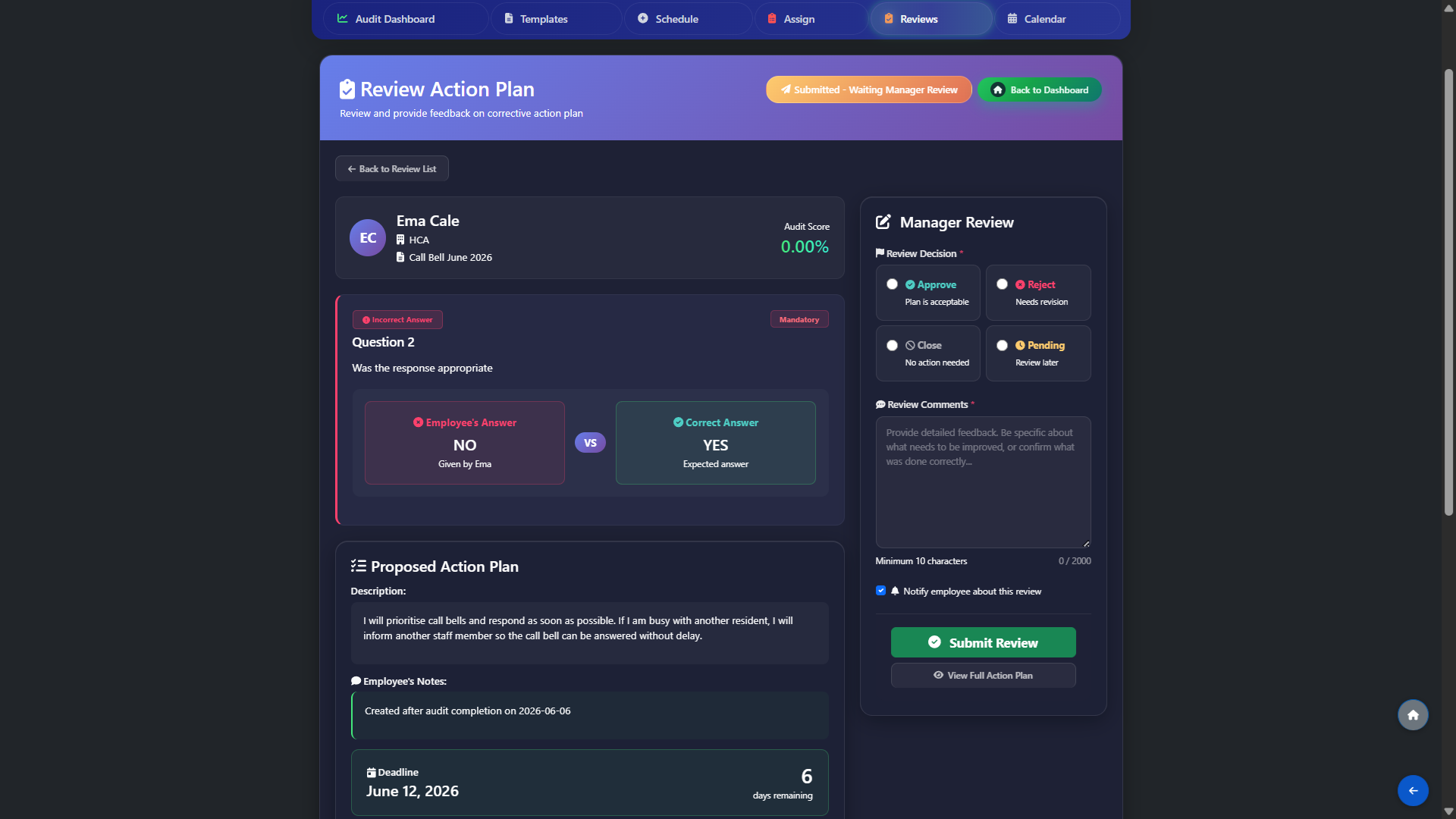
Go to the Reviews tab in the Audit Management System. Open the submitted audit and review the employee's answers and any action plans created. If everything is satisfactory, click Approve. The employee is notified automatically and the audit moves to the final step.
Employee Closes the Audit
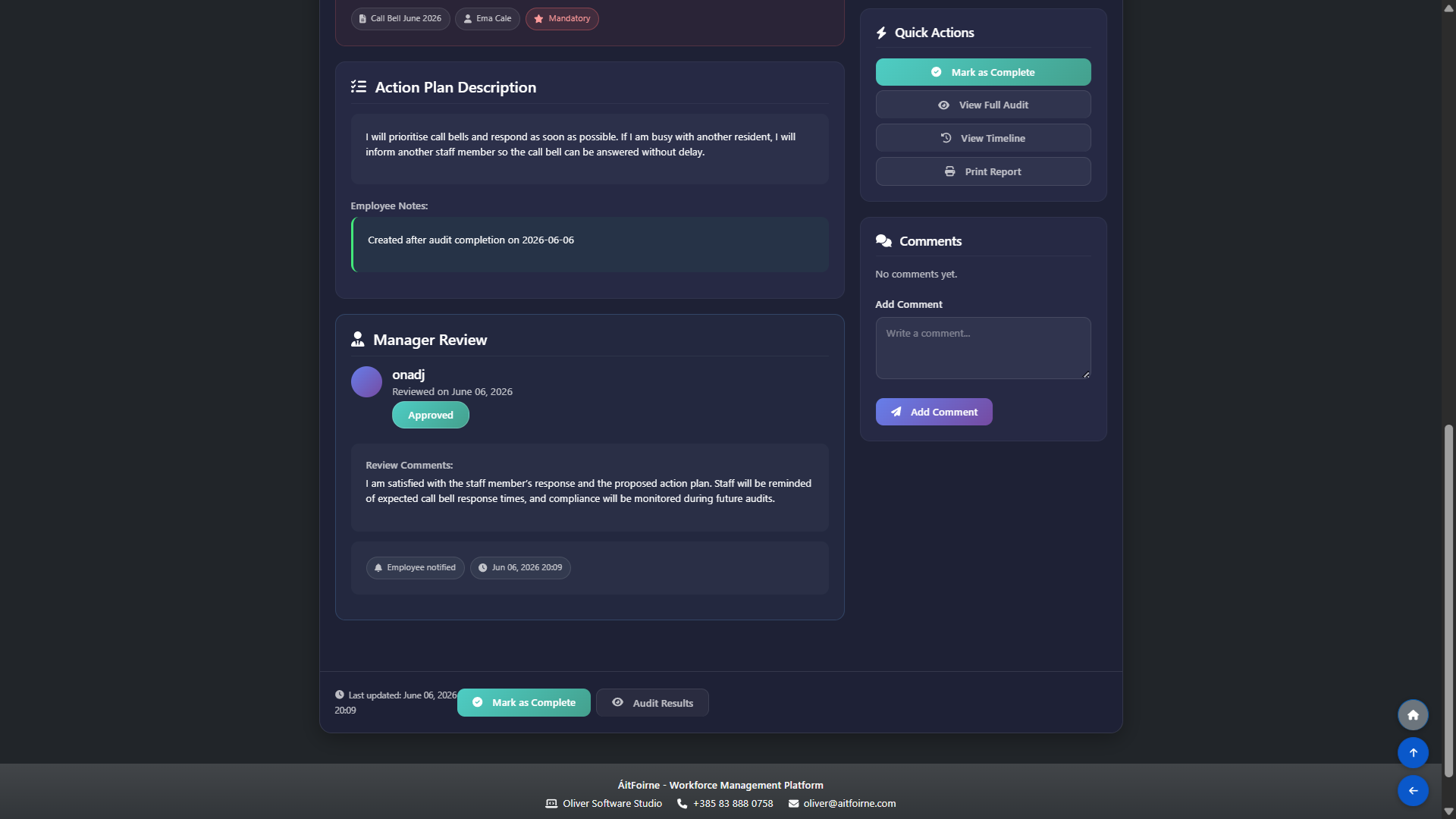
The employee returns to their Employee Portal and sees the audit status has changed to Approved. They can now mark it as Closed, completing the full audit cycle. All compliance scores and action plans are recorded and visible to the admin on the Audit Dashboard.
Reuse Templates & Assign to Multiple Employees
Audit templates are reusable — once created, the same template can be assigned as many times as needed without rebuilding the questions each time.
To reuse a template: 1. Go to the Assign tab in the Audit Management System 2. Select the existing template from the dropdown list 3. Select one or more employees — you can assign the same audit to an entire team at once 4. Set a Due Date and click Assign
Each employee receives their own individual copy of the audit to complete independently. Their answers, action plans, and compliance scores are tracked separately.
This means you can run the same monthly audit (e.g. "Bell Audit") across all staff in a department with a single assignment, saving time and ensuring consistency across the team.
Add Questions to an Existing Template
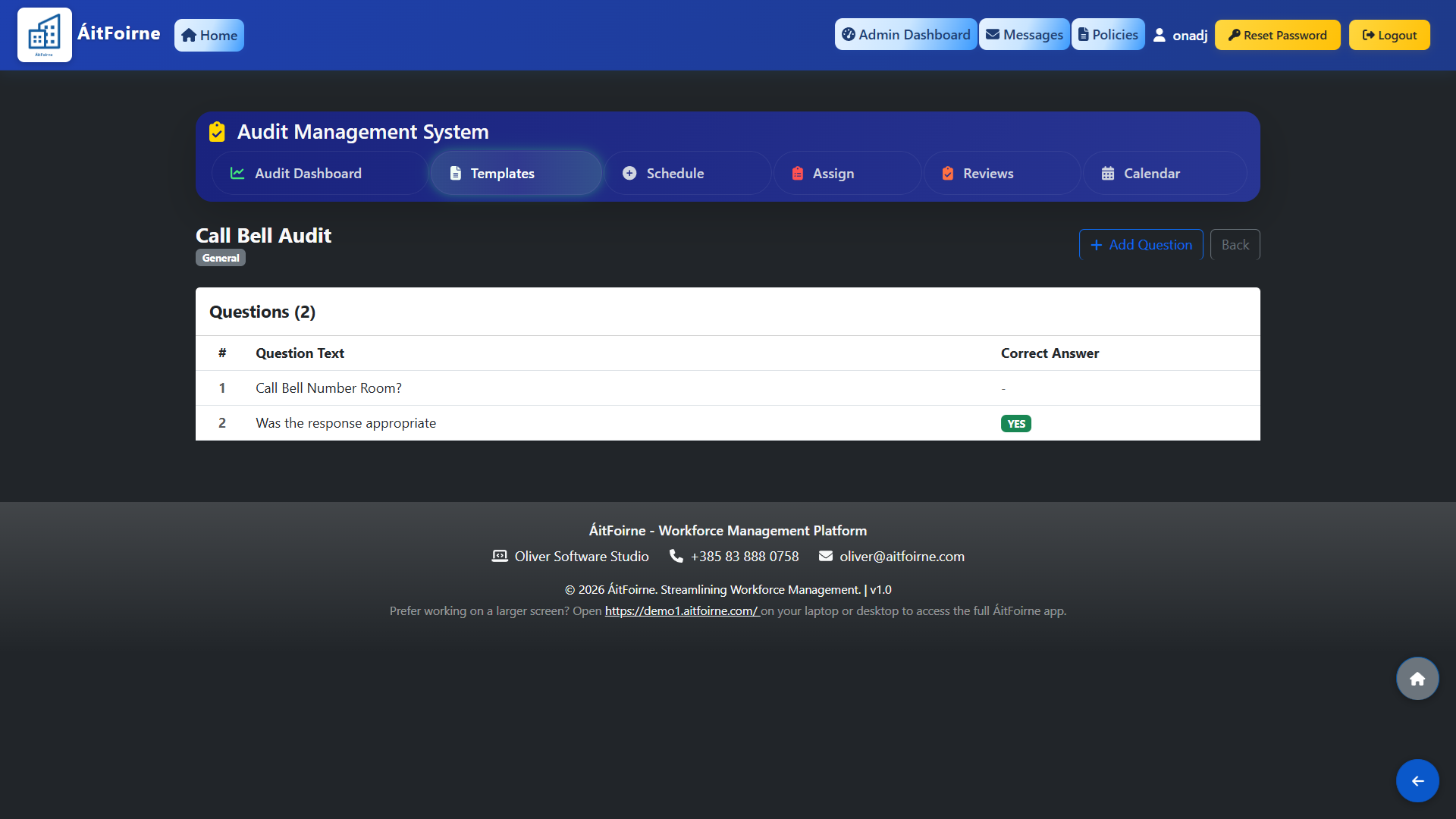
You can add new questions to an existing template at any time without creating a new one from scratch.
To add questions to an existing template: 1. Go to the Templates tab in the Audit Management System 2. Find the template you want to update and click on it to open it 3. Scroll to the questions section and click Add Question 4. Fill in the Question Text, Answer Type, Correct Answer, Weight, and Mandatory settings as needed 5. Click Save when finished
Important: Changes to a template apply to future assignments only. Audits that have already been assigned or completed are not affected by template edits.
Monitoring Compliance on the Audit Dashboard
The Audit Dashboard gives the admin a real-time overview of all audit activity across the organisation. It is the central place to monitor compliance, track progress, and identify issues.
The dashboard displays the following key metrics:
- Total Compliance — the overall compliance percentage across all completed audits, with a rating label (e.g. Good, Critical)
- Total Audits — total number of audits broken down into completed and in progress
- Completion Rate — percentage of assigned audits that have been completed
- Action Plans — number of overdue and pending corrective action plans
Below the metrics, the Active Audit Assignments table lists every audit with the employee name, current status (Open or Completed), and compliance score. Click View Audit next to any entry to see exactly how the employee answered each question, including which answers were incorrect and what action plans were created.
The dashboard can be filtered by department — including Nurse, HCA, Catering, Laundry, Activities, Maintenance, and others — so managers can monitor compliance within their own team.
At the bottom, the Performance by Audit Type and Status Summary sections provide a breakdown of results across all audit templates, giving a clear picture of where compliance is strong and where improvement is needed.