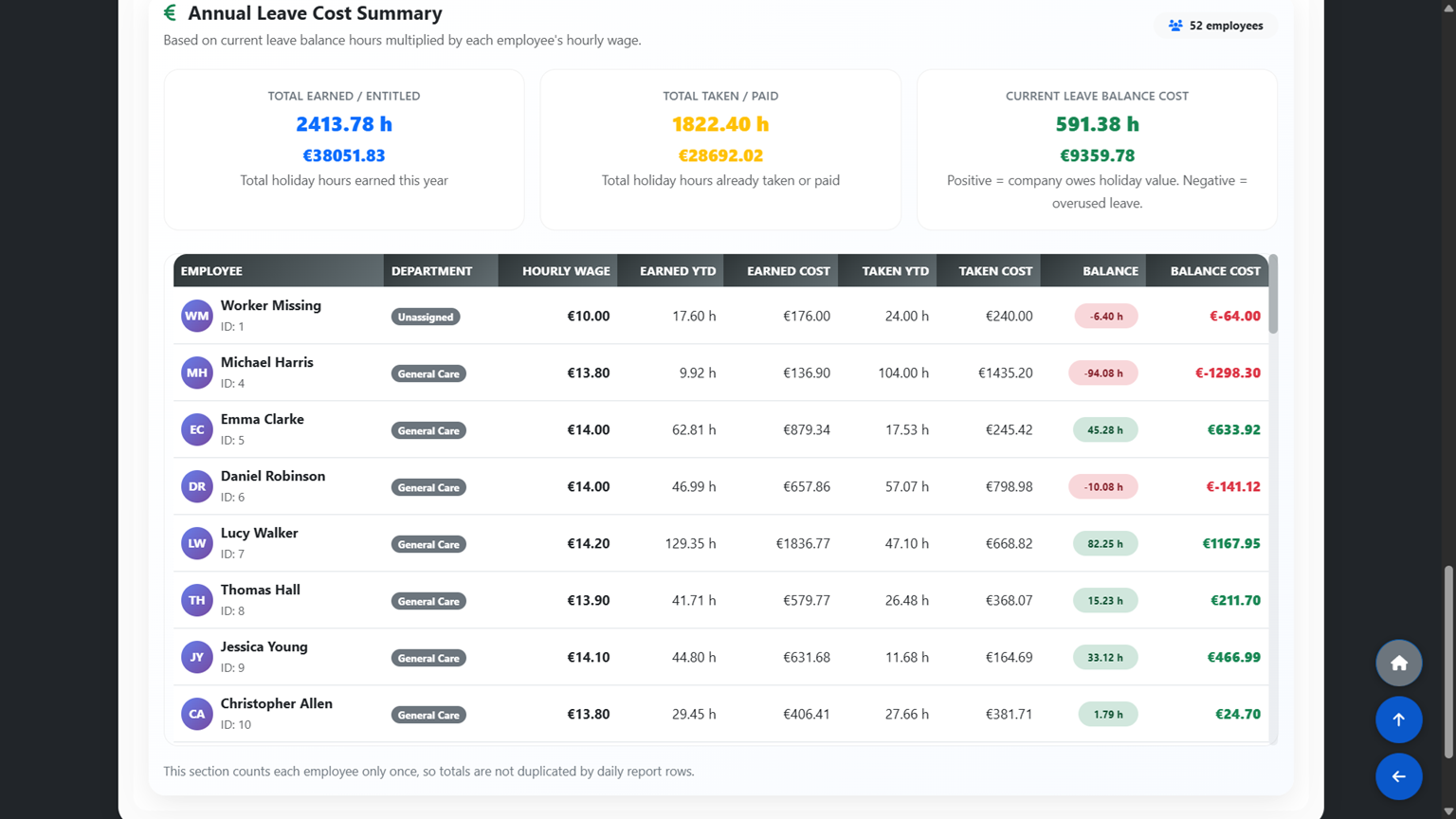
Understanding the Leave Cost Overview

The Annual Leave Hours & Cost section provides a detailed, TimeClock-based calculation of holiday pay entitlement for every employee. It is the most accurate method of tracking leave costs as it pulls directly from real clock-in and clock-out data rather than scheduled hours alone. The total financial liability of unpaid holiday hours across your entire workforce is shown at the top of the page.


1
Opening the Leave Cost Overview

From the main dashboard, go to Annual Leave Hours & Cost and click Company Overview. Use the Year and Week filters to view data for a specific period or select All weeks (aggregated) to see the full year summary. Use the Search field to find a specific employee.

The total liability figure at the bottom of the page shows the estimated total payout cost if all unused holiday hours were paid out at current hourly rates — giving you a clear picture of your facility's financial exposure at any point in time.

Opening the Leave Cost Overview
2
Reading the Leave Cost Table

Each employee row shows the following columns:

  • Rounded Hours (for 8%) — hours worked after applying the rounding rules set in Leave Cost Settings. These are the hours used to calculate holiday accrual.
  • Raw Hours (TC) — the actual hours recorded by the TimeClock and any manual entries, without rounding.
  • Scheduled Hours — the hours the employee was scheduled to work according to the roster.
  • Hols Due (8%) — holiday hours earned, calculated as 8% of the rounded hours for the selected period. This is in line with Irish employment legislation.
  • Hols Taken — the total holiday hours used, including scheduled holiday and any manual holiday payments recorded.
  • Balance (Hours) — Hols Due minus Hols Taken. A positive balance means the employee has unused holiday hours still owed.
  • Hourly Rate — the employee's current hourly pay rate.
  • Estimated Cost — the Balance multiplied by the Hourly Rate, showing the financial value of the employee's unused holiday entitlement.
  • Issues (TimeClock vs Schedule) — flags any discrepancies between the scheduled shift and what was actually clocked, such as missing clock-ins, short shifts or overtime.
Reading the Leave Cost Table
3
Reviewing and Resolving Issues

The Issues column highlights any discrepancies detected between the scheduled roster and the TimeClock data for each employee. Common issue types include:

  • No TimeClock for scheduled shift — the employee was on the roster but did not clock in or out. This results in 0 hours being recorded for that shift.
  • Short vs scheduled shift — the employee clocked out before their shift was due to end, working fewer hours than scheduled.
  • Overtime vs scheduled shift — the employee worked longer than their scheduled shift end time.

Click on any employee row to expand their full Shift & TimeClock Details, showing a day-by-day breakdown of scheduled hours, clock-in and clock-out times, actual hours worked and the status of each shift. Review each flagged entry and use the Edit function on the employee row to correct any inaccurate hours. Once an issue is resolved and saved, the warning will be removed automatically.

Reviewing and Resolving Issues